Take payments with Redsys
Redsys runs the online card terminal (TPV Virtual) of most Spanish banks. Connect yours to Nomora and customers pay by card or Bizum on Redsys’s payment page. The money goes straight to your bank account, and each payment appears on its booking by itself.
Redsys works for organizations that charge in euros, and Nomora turns it on per organization. If Settings → Payments shows no Redsys card to someone who can change settings, contact Nomora support.
What to ask your bank
- A TPV Virtual that uses redirection (“redirección”). Ask for its merchant code (FUC), terminal number and SHA-256 secret key (“clave de firma”) for live payments.
- HTTP notifications (“notificación online: HTTP”) turned on. Without them, a payment is missed when the customer closes the page before returning.
- Bizum on the same terminal, if you want to offer it.
- Payments by reference (“pago por referencia”) and pre-authorisations (“preautorizaciones”), if you want to save cards, hold deposits or charge open-ended rentals automatically.
You can send your bank this:
Necesito el código de comercio (FUC), el número de terminal y la clave de firma SHA-256 de mi TPV Virtual por redirección, con la notificación online HTTP activada. Además, solicito activar el pago por referencia y las preautorizaciones en el terminal.
Connect Redsys
- Open Settings → Payments and find the Redsys card.
- Enter the merchant code, terminal and secret key. Keep Production (Live).
- Click Connect Redsys.
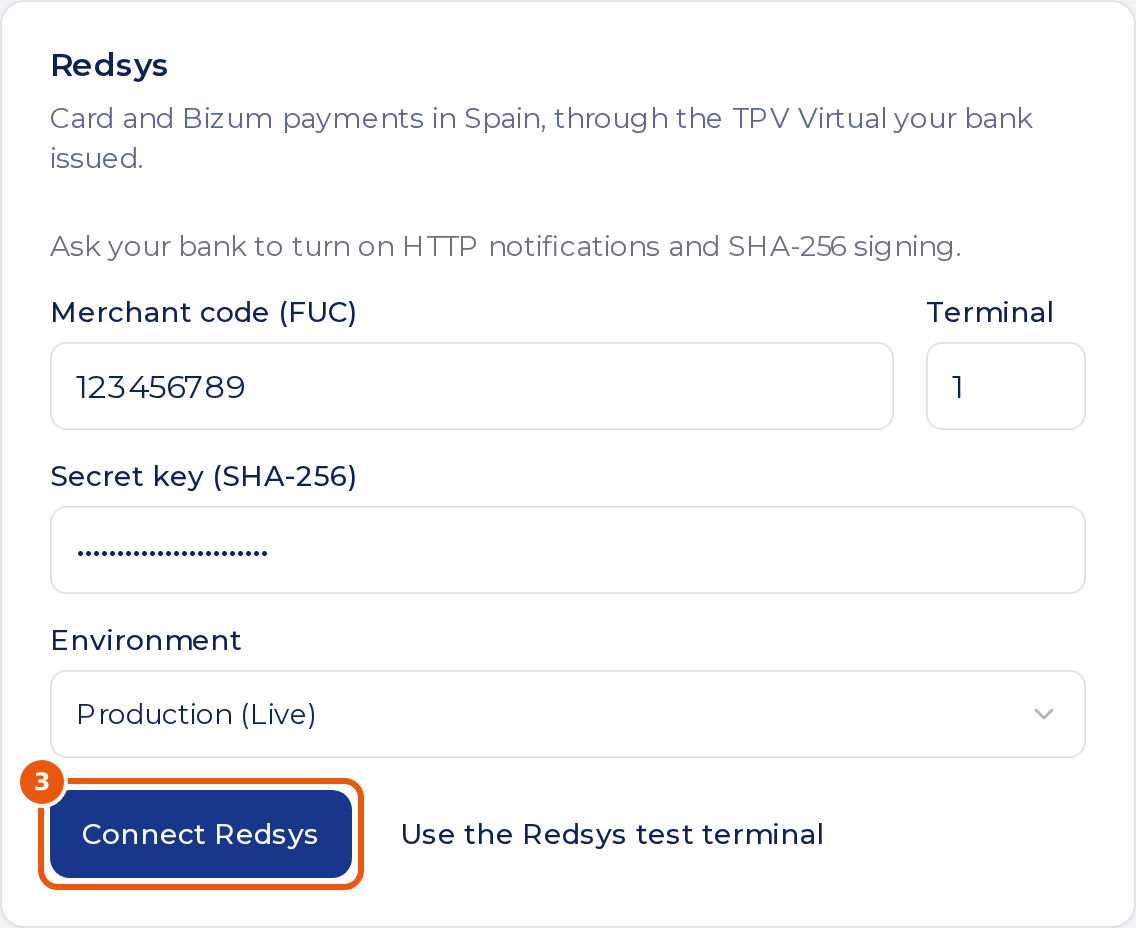
Test terminal. To try Nomora with Redsys before your bank is ready, click Use the Redsys test terminal and connect. Pay with the test card 4548 8144 7972 7229, expiry 12/49, CVV 123. No real money moves. Click Change terminal to enter your own details when you go live.
Change terminal
Saved cards and payments belong to the terminal that took them. Refund payments from the old terminal first: after the change, Nomora can’t refund them or charge cards saved on it.
The terminal can’t be changed or disconnected while:
- a booking has a live hold or automatic card payments on Redsys
- a payment a customer started in the last hour is still waiting for its result
Make Redsys the default
With Stripe, Montonio or CX Pay also ready to take payments:
- Choose Redsys under Preferred Payment Provider in Settings → Payments, and save.

New payment links then open Redsys, and once Saved cards is on, cards are saved with Redsys. Links already sent keep their provider.
Test your live terminal
- On a test booking, click Payment link in Payments, enter 1.00 and click Generate link.
- Open the link and pay with your own card. Close the Redsys page instead of clicking Continue.
- Check that the payment appears on the booking. If it doesn’t, ask your bank to turn on HTTP notifications.
- Refund it.
Customer view
Customer links, payment links, the Guest Book and invoice payment links send the customer to Redsys’s page.
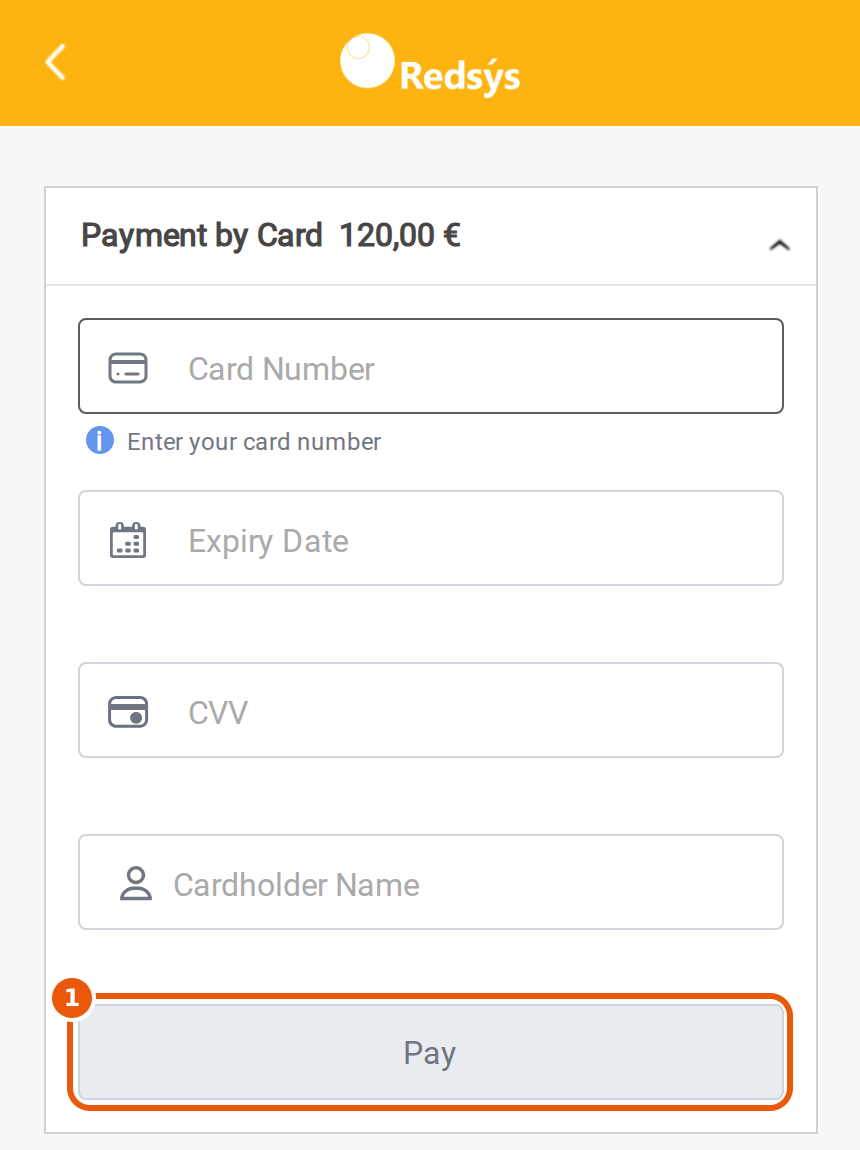
- They enter their card and click Pay, or pay by Bizum if your bank turned it on.
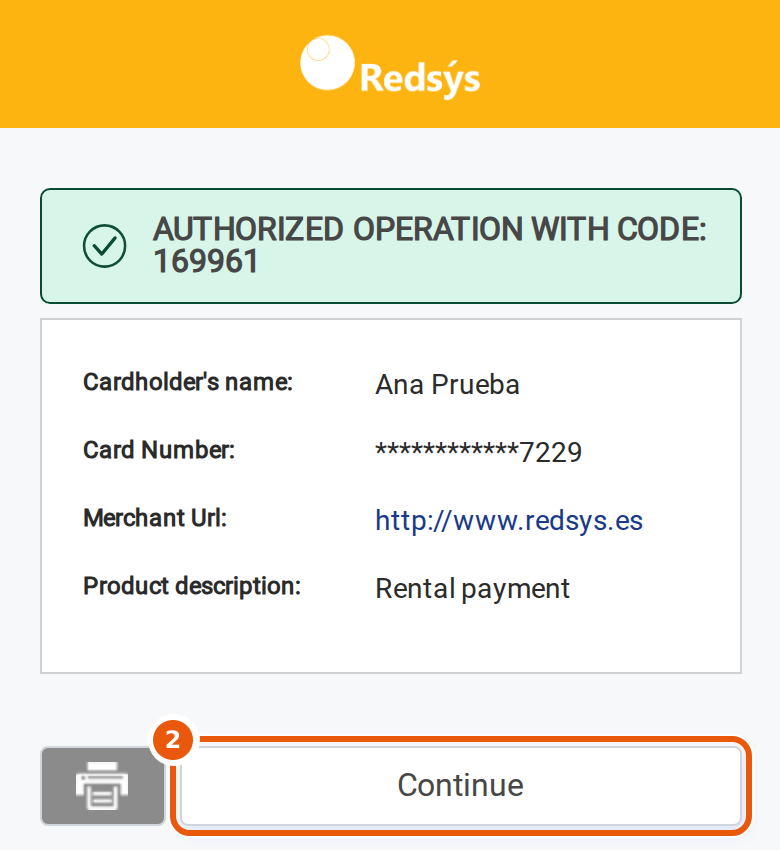
- They click Continue to come back. The payment appears in the booking’s Payments.
Saved cards and holds
Once your bank has turned on payments by reference and pre-authorisations:
- Turn on Saved cards on the Redsys card.
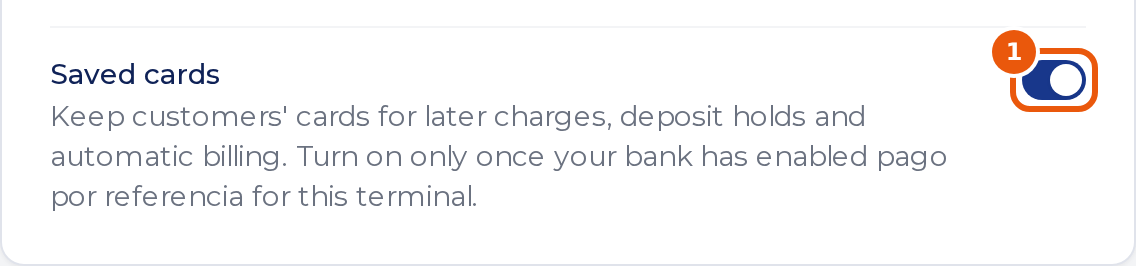
- To have customer links ask for a card, turn on Ask for a card on file in Settings → Payments and save. A vehicle class can be set differently in its payment rules. Open-ended rentals save their card through automatic card payments instead.
From then on, the card a customer pays a payment link with is saved on the booking. A customer link saves it as well when it asks for a card on file. Charge card, Capture and Release then work as described for Stripe, and so does the hold at check-out.
Hold a deposit
- In the booking’s Payments, click Hold deposit next to the saved card.
- Check the amount, then click Hold deposit.
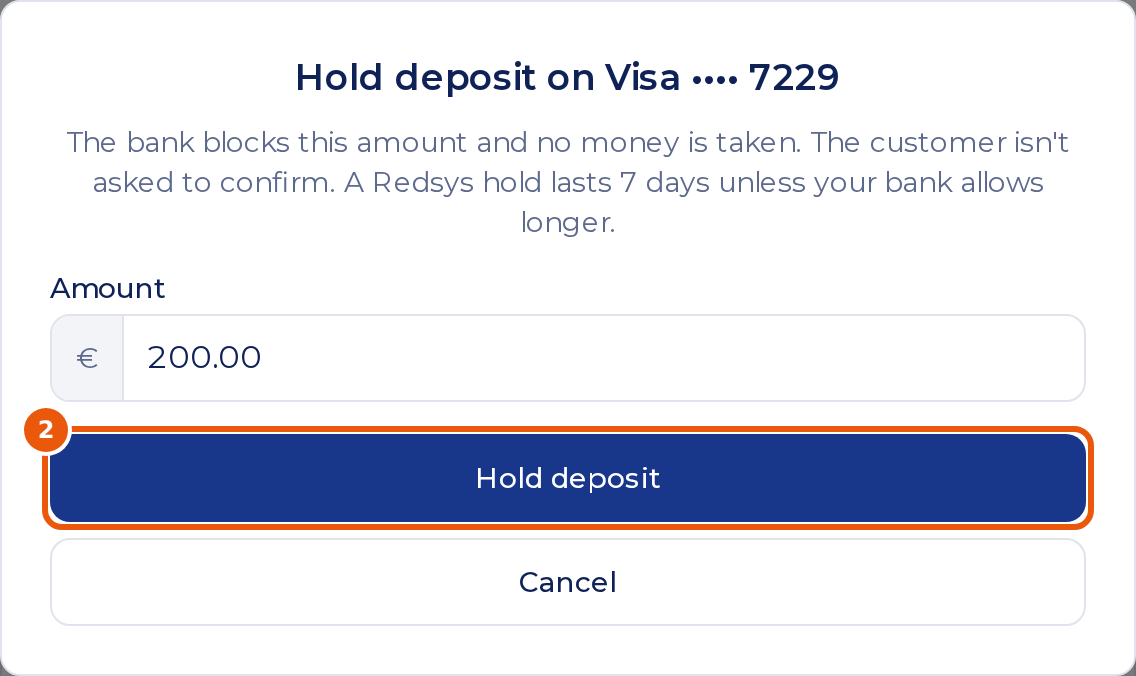
Nomora counts a Redsys hold as lasting 7 days, because some banks release it then. After that the booking shows the hold as lapsed and no longer offers Capture or Release, even if your bank keeps the money blocked for up to 30 days.
Refund a payment
Refunds you make in your bank’s Redsys portal never reach Nomora, so refund from the booking instead.
- In the booking’s transactions, click Refund on the Redsys payment.
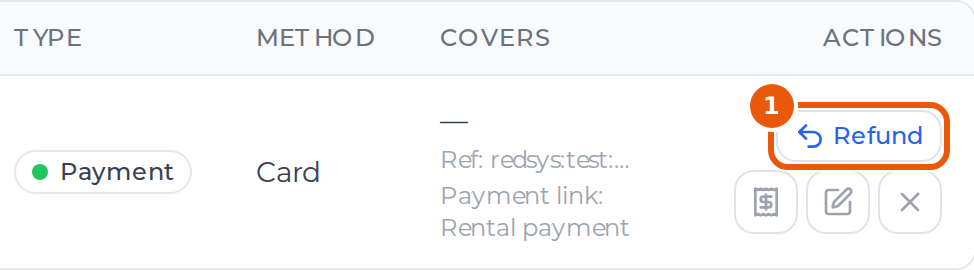
- Enter the amount and click Refund to card. You can refund part of a payment, and refund again later up to what’s left.
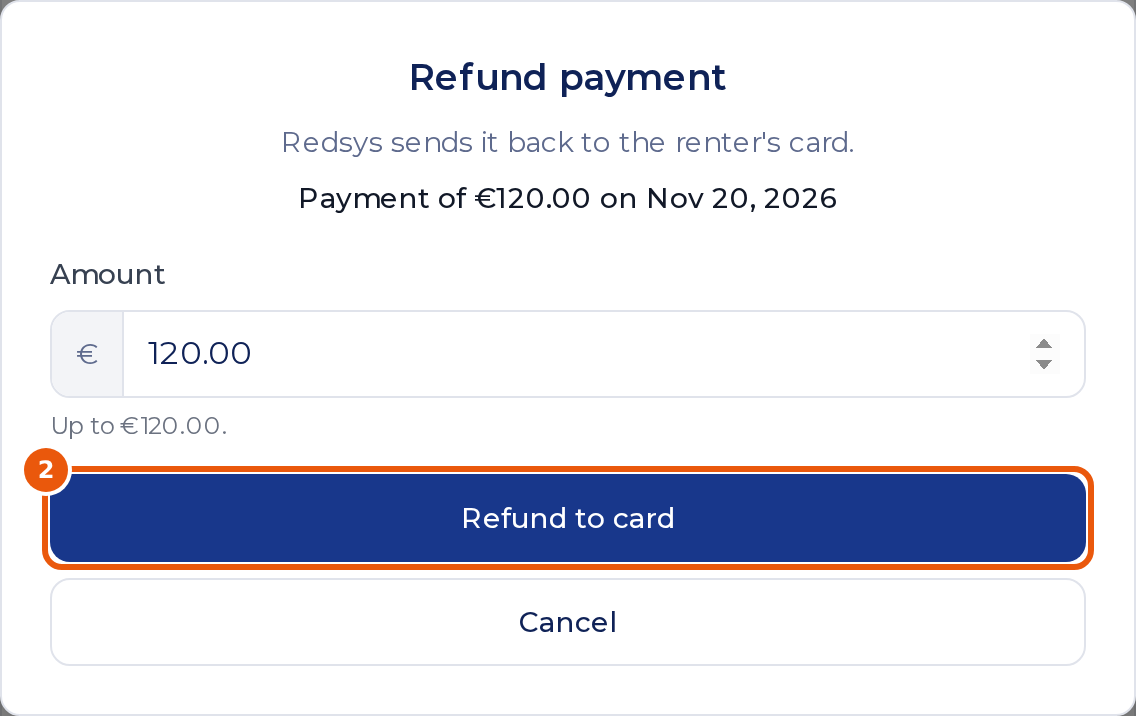
Redsys sends the money back to the card, and the refund is recorded on the booking. A deposit paid through Redsys is returned the same way: click Return on its row, as in Return a deposit.
Automatic payments
With Saved cards on, automatic card payments can run on Redsys. Nomora has to turn on automatic card billing for your organization, and when Stripe can also take payments, Redsys must be the preferred provider. The booking rules in Before you start apply.
- Open the booking and find Automatic card payments below its recurring price.
- Choose whether to Also take the deposit by card, then click Set up card payments.
- Check Paid at card setup. It can include rent for periods that have started and aren’t covered yet, plus the deposit. At 0, Redsys only checks the card.
- Send the customer link. The customer clicks Add card and pay (or Add card at 0) and completes Redsys’s page.
- Check that the panel shows Active before you rely on it.
After that:
- Nomora charges the card itself, at its hourly run after each week or month starts.
- If a charge is declined, the panel shows Payment failed. Nomora tries again 1 day after the decline, then 3 and 5 days after the next ones, then stops. The customer can pay what’s owed from their customer link at any time.
- A changed weekly or monthly price applies from the next charge.
No answer from Redsys
Rarely, Redsys doesn’t reply, and the dialog says Nomora can’t tell whether the operation went through. Nomora never sends it again by itself. Find the operation in your bank’s Redsys portal, then:
- Charge: if it went through, record it with Add Payment. If it didn’t, reload the booking and charge again.
- Hold: Nomora tries to cancel the new hold straight away. If it’s still listed on the booking, click Release, and check the portal if that gets no answer either.
- Capture or refund: the booking may not show the result. Contact Nomora support with what the portal shows, and they’ll correct the booking.
For automatic card payments, the panel shows the same warning under Payment failed. Until you check, Nomora stops charging that booking and the customer can’t pay from their link. If the charge went through, record it in payments. To start again, click Stop automatic payments and set them up again.