Create and send an invoice
Create an invoice from the booking, check its contents, then choose whether to send it now or later. Nomora can issue invoices itself, or use your connected Invoice123 or Monet account.
Create an invoice for a booking
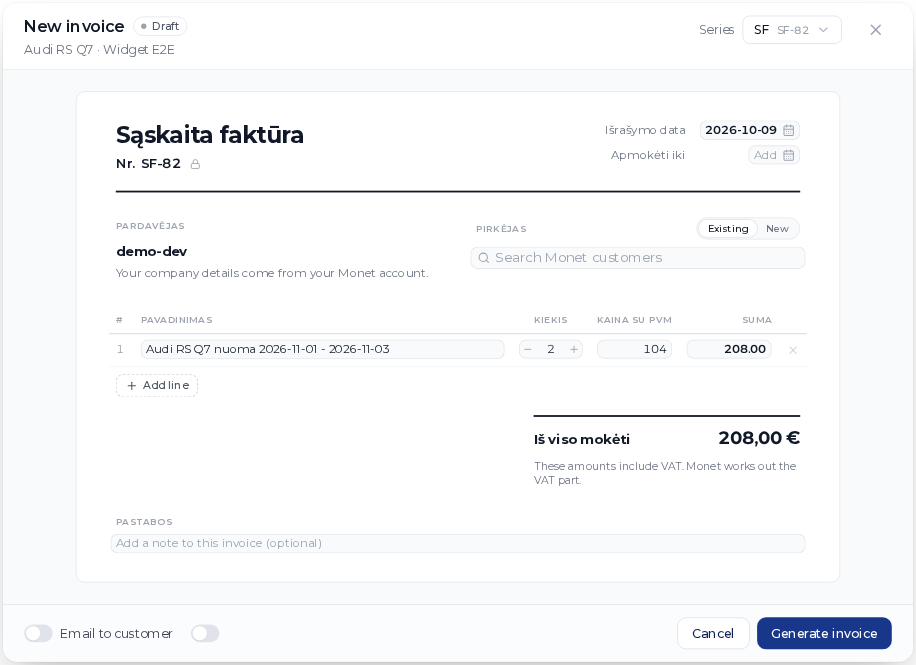
- Open the booking and find its documents section. Click Generate Invoice.
- Check the invoicing provider in the editor. For a built-in invoice, review your company details and the buyer. For Invoice123 or Monet, select an existing customer in that provider or create one in the editor.
- Review the invoice date, due date, numbering series and lines. Booking prices and additional charges fill the initial draft. You can change descriptions, quantities and prices, remove a line or add one.
- Check the total and tax treatment. Complete any fields marked as missing. The number shown before generation is a preview; the final number is assigned when you generate the invoice.
- Leave Email to customer off to generate the invoice without emailing it. Click Generate invoice. The invoice appears on the booking and in Finances → Invoices.
If charges could not load, retry before generating. Otherwise, the draft may omit an amount you intended to bill. Editing an invoice line changes that invoice, not the booking’s agreed price or payment records.
Generating an invoice marks an ordinary fixed-end booking Invoiced. It does not collect payment. A running open-ended rental keeps its status when you invoice a period.
Generate and email in one step
Before generating, turn on Email to customer. Choose the client’s address, the company’s address or Another address…. Check the address itself, especially when the driver and the company paying for the rental are different people.
- Click Review email.
- Check the recipient, subject and message. A copy option appears when an invoice copy address is configured.
- Click Generate & Send Invoice.
- Check the invoice’s email information after generation. If the invoice exists but the email failed, send that invoice again instead of generating another one.
Set the default message and copy address in Settings → Invoices → Invoice Email Settings.
Send or resend an existing invoice
Open Finances → Invoices, find the invoice and use its email action. The booking’s documents section also has Send email or Resend email. Review the destination and message before sending. Download the PDF from the same invoice row.
For a built-in invoice, downloading the PDF marks it as sent for numbering purposes. Read Invoice status and corrections before downloading a draft you may need to delete.
Invoice several bookings together
In Bookings, select the rows to invoice and use the invoice action. All selected bookings must belong to the same company. Review the buyer and every rental line in the editor. Choose the company customer when that company pays for bookings with different drivers.
For recurring invoices on running rentals, use Automatic period invoices. Issuing a period invoice keeps the rental running.
See Set up invoicing for provider settings and Invoice status and corrections for paid, cancelled and mistaken invoices.