Renew, edit, and remove documents
Use renewal for a new policy or certificate period. Use editing to correct the existing record. This keeps previous documents and their recorded costs available as history.
Renew a document
- Open the vehicle’s Documents list.
- On a document that is expiring soon or expired, click Renew.
- Review the prefilled name, dates, cost mode, and category. The proposed start is the day after the old document ends; the proposed period follows the previous one.
- Upload the new file. The previous attachment is not copied.
- Review the new document’s cost or payment schedule, then click Add document.
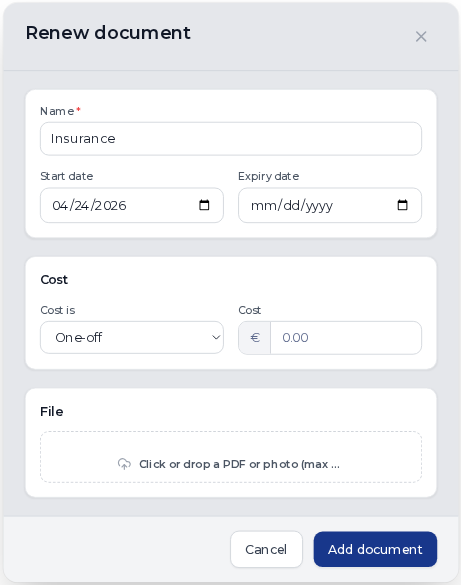
Renew creates a new document; it does not edit the old one. Nothing is saved until you confirm. The Renew action is hidden when a later document already covers the same recognized type or, for other documents, the same name.
If the proposed dates do not match the new policy, replace them before saving. For example, a renewal arranged with a different insurer may have a different start or term.
Correct an existing document
Click the pencil beside the document, correct the name, dates, cost, or attachment, then save. Changing the document’s name can change its recognized type and which expiry appears in insurance, inspection, or road-tax summaries.
If the document owns a payment schedule, edit that schedule from the document. Some changes affect only future expenses; shortening a period can require confirmation before removing already recorded payments. Review the cost guide before changing historical amounts.
Remove a document or clear its cost
Use the document’s delete action to remove it. If it has recorded expenses, Nomora asks whether to keep or delete those expenses. Read that choice before confirming. Keeping expenses preserves the history and stops the document’s recurring schedule.
Removing an attachment in the edit form is different from deleting the document. The record and its dates remain when you save it without a file.
Keep unavailable vehicles out of bookings
Expiry alerts show a problem that needs your decision; they do not create a blockout. A repair task recorded during return also does not by itself reserve the vehicle for repair.
When a vehicle cannot be rented, create an explicit calendar blockout for the affected period or change the vehicle’s availability. A blockout remains separate from the document or repair task, so review it after renewal or repair and remove or shorten it when the vehicle is ready.
A blockout created over an existing rental can show an overlap warning. It does not cancel that rental. Review the existing booking separately. Staff can deliberately override availability conflicts when creating or changing bookings; public availability is still checked.