Vehicle pickup and return
Record the start and end of a rental from the booking page. Check Out records the vehicle leaving with the customer; Check In records its return. This guide covers preparing the booking, mileage, fuel, vehicle condition, handover documents, signatures, and the final balance.
| When | Booking status | Action | Result |
|---|---|---|---|
| The customer collects the vehicle | Pending or confirmed | Check Out | Active |
| The customer returns the vehicle | Active | Check In | Completed |
Both actions require an assigned vehicle. Check-in also needs the pickup mileage recorded during checkout.
Before pickup
Open the booking and review the assigned vehicle, rental dates, customer and driver details, and any rental items or insurance. Check the payment and security deposit records against your organization’s collection policy.
Review Vehicle Condition with the customer. Record existing damage with a description and photo where needed, and mark the location on the vehicle diagram if one is available. Clicking a damage marker or list entry highlights the matching record.
If you use rental agreements or handover documents, review the booking’s Documents section. You can generate a document before pickup or continue into document generation from checkout when a template is available.
At pickup
- Click Check Out on the booking.
- Enter Departure Mileage, or use Fetch from Tracker if the vehicle has a connected tracker. Check the reading before continuing.
- Under Fuel / charge, pick the level the vehicle leaves with: E, ¼, ½, ¾ or F. For an electric vehicle, read the scale as battery charge. The field is optional, and clicking the selected level again clears it.
- Review the mileage allowance and price per extra distance unit. You can adjust these for this booking. A booking with the unlimited mileage add-on shows Unlimited mileage instead.
- If an equipment checklist covers the vehicle, click Next and confirm the items handed over.
- Click Check Out to save, or Continue to Handover when document generation or pickup details are next. Complete the document steps described below.
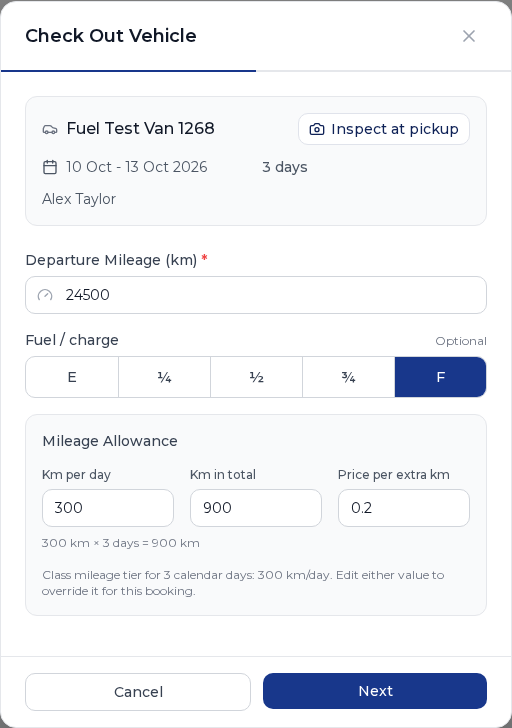
Checkout changes the booking to Active and records the pickup time, mileage, fuel level, and operator. The allowance is saved with the booking, so later changes to vehicle or class defaults do not change the rental’s terms. See distance allowances for the allowance calculation and pricing options.
At return
Open the active booking and click Check In. The form starts with mileage and fuel, then walks through vehicle condition and any applicable checks. Use Next and Back to move between steps.
Record mileage, fuel and the return time
Enter Return Mileage, or fetch it from the tracker, and review the Mileage Summary. It shows the distance driven, included distance, and any excess-distance charge. Distance values follow your organization’s km or miles setting.
For an open-ended rental, also confirm the actual return date and time. This closes the rental period and determines the final rent. If a final adjustment shows an amount still due, collect it through your usual payment process.
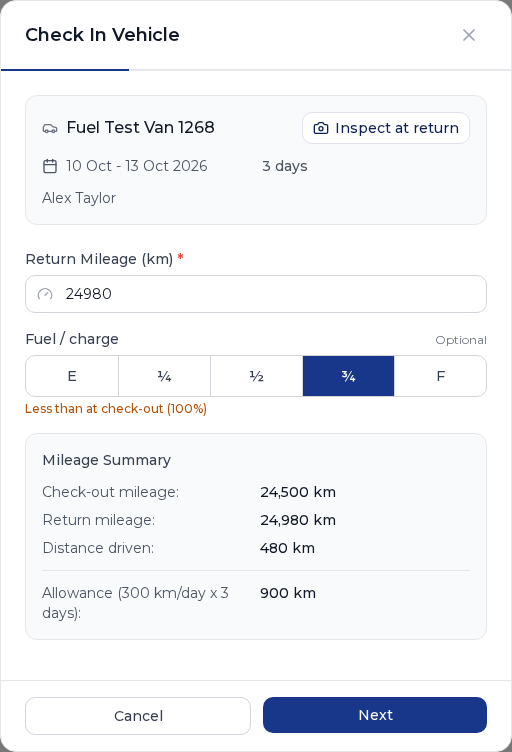
Under Fuel / charge, pick the level the vehicle came back with. When a level was recorded at pickup, the form shows it below the scale, and the line turns amber if the vehicle is back with less. Like at pickup, the field is optional.
If the return reading is lower than the pickup reading, check for a typo. When the original pickup capture was incorrect, you can explicitly confirm the lower return reading and continue. Calculated distance driven never drops below zero.
Review condition and follow-up work
- On Defects, click Add defect for new damage. Choose its position on the diagram when available, add the type, severity, description, and a photo as needed, then save. The record links to this vehicle and booking. Earlier defects for the rental appear separately. Click Next if there is nothing new to record.
- If an equipment checklist applies, confirm what came back against the list saved at pickup and note any missing items.
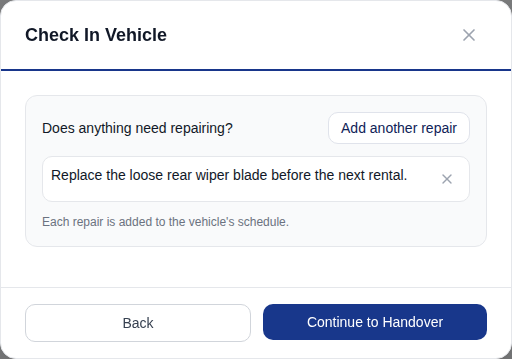
- On Repairs, add work the vehicle needs before its next rental. Each entry takes a description and an optional photo. You can add up to 20 repairs or continue without adding any. On completed check-in, each repair becomes a pending task linked to the vehicle and due on the return date, visible on the vehicle calendar. Add a repair entry when a damage record needs follow-up work.
Complete the return
Click Check In, or Continue to Handover if a document needs return details. Check-in records the return time, mileage, fuel level, and operator, changes the booking to Completed, and updates the booking total and payment balance with any mileage overage.
For an open-ended booking, the actual return also becomes the rental end date. A booking with fixed dates keeps its booked end date. If document details or signatures are still needed, finish those next.
Handover documents and signatures
The document steps depend on the templates and documents used for this booking. If an existing document needs pickup or return information, the corresponding data form opens with the mileage you just entered. If a template is available and no document has been generated yet, you can create one after recording the vehicle movement.
- Choose the template when creating a document and review the prefilled booking details in the preview.
- Fill the fields required by that template, such as pickup or return information. For repeated values, you can use dropdown options for template fields. A template with a fuel field takes the level you picked at Check Out or Check In, so the pickup and return forms do not ask for it again.
- Capture staff and customer signatures where the template uses them. Choose Customer is here for signing on the current device, or Remote signature to send a signing request by email, copy a link, or use a paired front desk tablet. Choose Skip signature when it is not needed.
- Save the document or stage details. Templates with separate pickup and return signatures let you collect each at the relevant handover.
The vehicle movement is saved before the document form opens. Check its remaining fields and signature status in Documents even if the booking is already active or completed. You can view the document, download its PDF, and send it to the customer from that section.
After return
The booking’s Rental Journey card shows Fuel / charge for both handovers as a percentage, or Not recorded when the field was left empty. When the vehicle came back with less than it left with, the card says how much of a tank is missing. Nomora does not charge for it automatically: add a charge to the booking if your terms call for one.
Review the booking’s final balance, including rental charges, mileage overage, and any additional charges you have recorded. Collect outstanding payments and handle the remaining security deposit according to your process. Completed is the rental status; check the payment records to see whether the balance is settled.
Check any repair tasks on the vehicle calendar and complete the document or signature follow-up still needed. The booking’s activity history records the pickup and return actions. Once the rental is closed, you can also send a review request from the booking.
If your team or workshop needs an automatic return summary, set up emails after check-in. These are optional internal notifications with separate summary and repair recipient lists.
Correct a mileage or fuel reading
Edit captured pickup or return mileage from the booking page. A corrected reading recalculates the excess-distance charge. The same edit lets you change the Fuel / charge level of either handover, or add one that was skipped. A document that was already filled in keeps the level it had. Regenerate it from Documents to pick up the correction. A pickup or return section that is already signed keeps the level it was signed with. You can also use Edit Allowance to correct the rental’s distance terms, including after return. See distance allowances and the unlimited mileage add-on.
Optional setup guides
- Vehicle inspections: capture pickup and return photos, review damage and share condition reports.
- Equipment checklists: create item lists for your vehicle classes and compare what was handed over with what came back.
- Emails after check-in: choose staff or service-partner recipients for return summaries and repair notifications.