Vehicle calendar views and settings
The vehicle calendar is a timeline of your fleet. Vehicles run down the left side, days run across the top, and every booking is a bar on its vehicle’s row. This page covers every way to change what the calendar shows and how it is laid out.
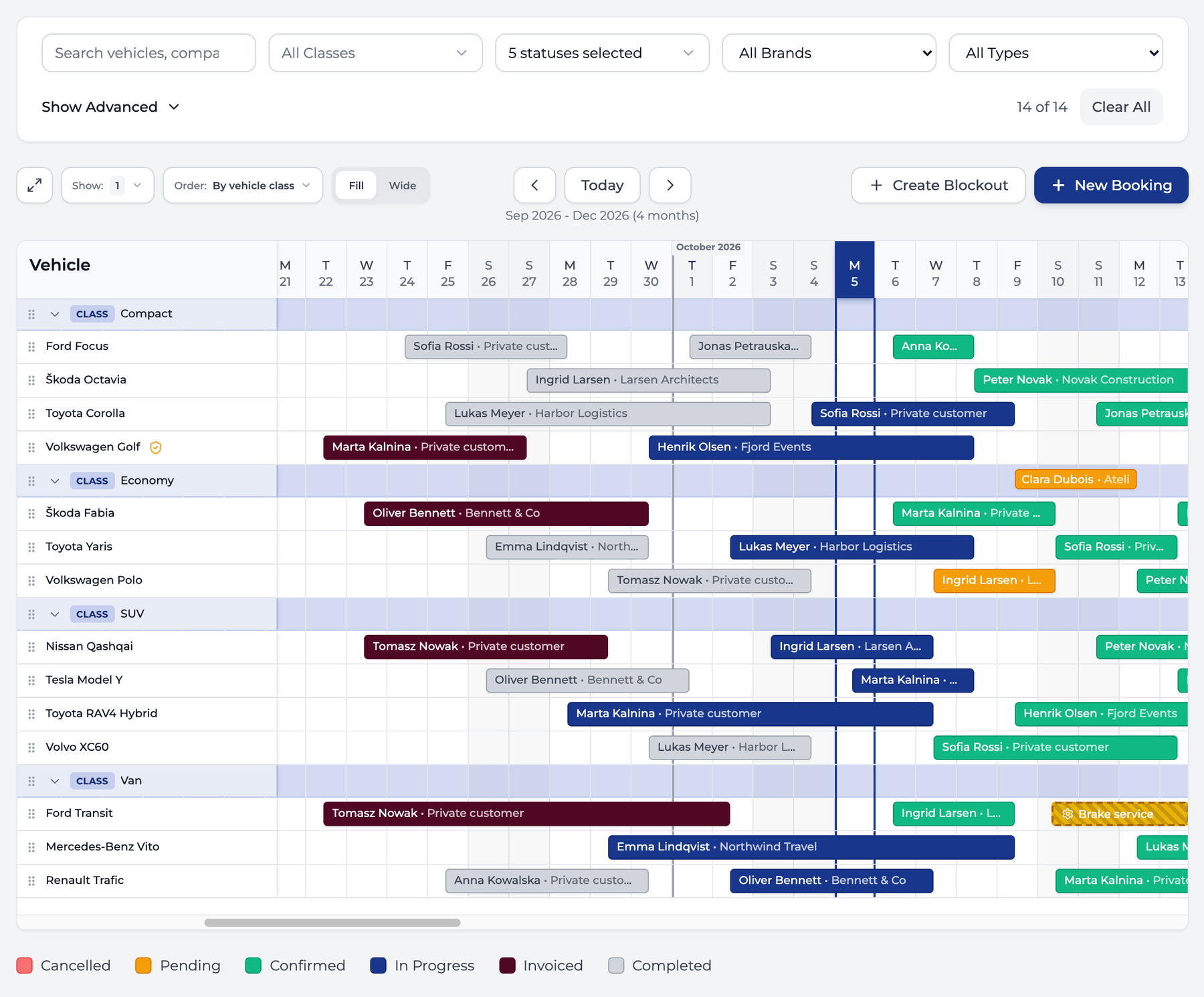
On the screenshots below, a pink outline marks the control that section is about.
Where to find it
Open Bookings in the sidebar. The By Vehicle tab opens first.
Reading the calendar
- Each vehicle has one row. A shaded Class row sits above the vehicles of that class and holds reservations made for the class before a specific vehicle is assigned.
- The bar colour is the booking status. The legend under the calendar lists them as Cancelled, Pending, Confirmed, In Progress, Invoiced and Completed.
- Today’s column has a dark blue header and a blue outline down the whole calendar.
- A striped yellow bar is a blockout, for example a repair.
- A small icon next to a vehicle name means a document or a service needs attention. Each alert has its own icon, and a vehicle can show several at once. Hover over an icon to see when the document expires or when the service is due.
- A shield with a check mark is insurance.
- A document with a check mark is technical inspection.
- A receipt is road tax.
- A wrench is maintenance.
Move through time
- Scroll the calendar sideways to move day by day.
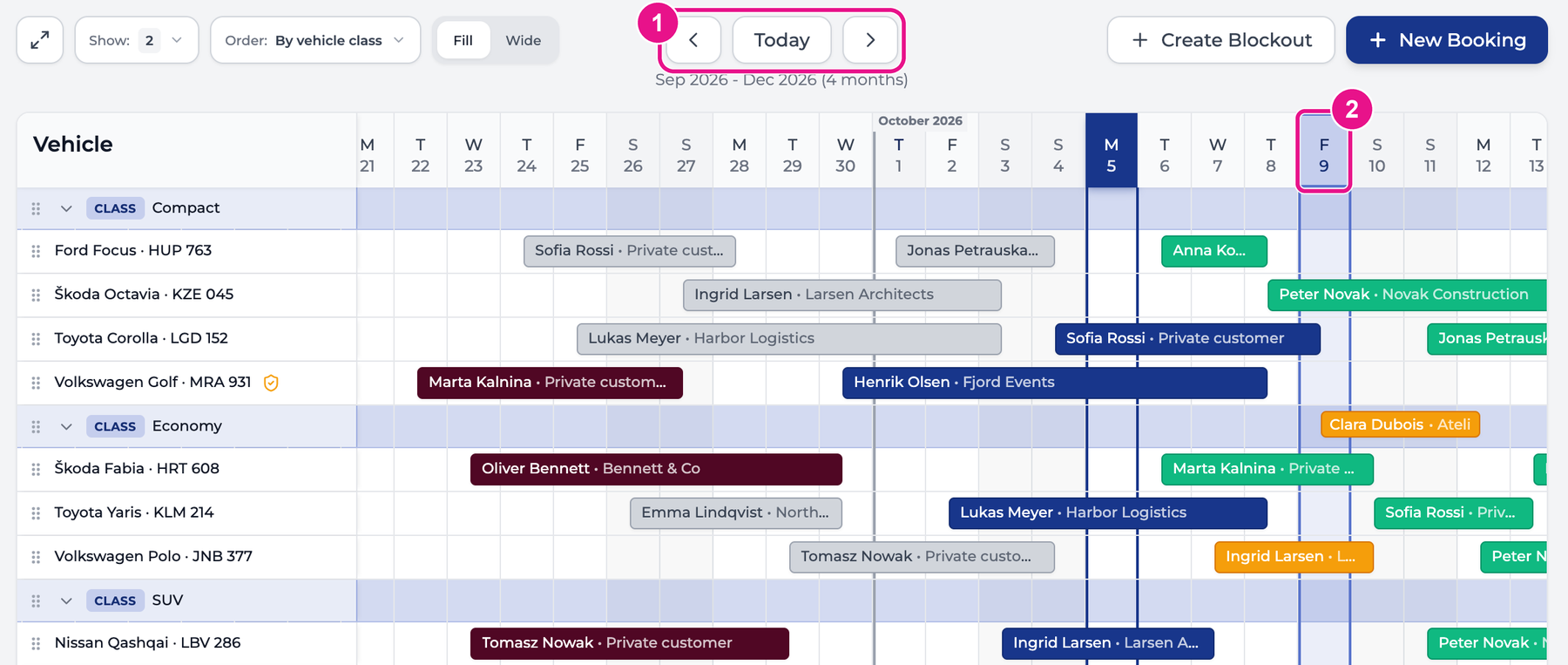
- Click Today to jump back to the current date. It sits in the middle of the toolbar, marked 1 below.
- Click the arrows on either side of Today to load 3 more months earlier or later. The line under the buttons shows the range that is loaded, for example “Sep 2026 - Dec 2026”.
To mark a date, click its day in the header, marked 2 below. The column stays highlighted while you scroll up and down the fleet. Click the same day again to clear it.
Choose what each vehicle row shows
By default a row shows the vehicle name. You can add the plate, the class or other details so similar vehicles are easy to tell apart.
- Click Show in the toolbar, second from the left. The number next to it is how many fields are on.
- Tick the fields you want. The rows update as you tick.
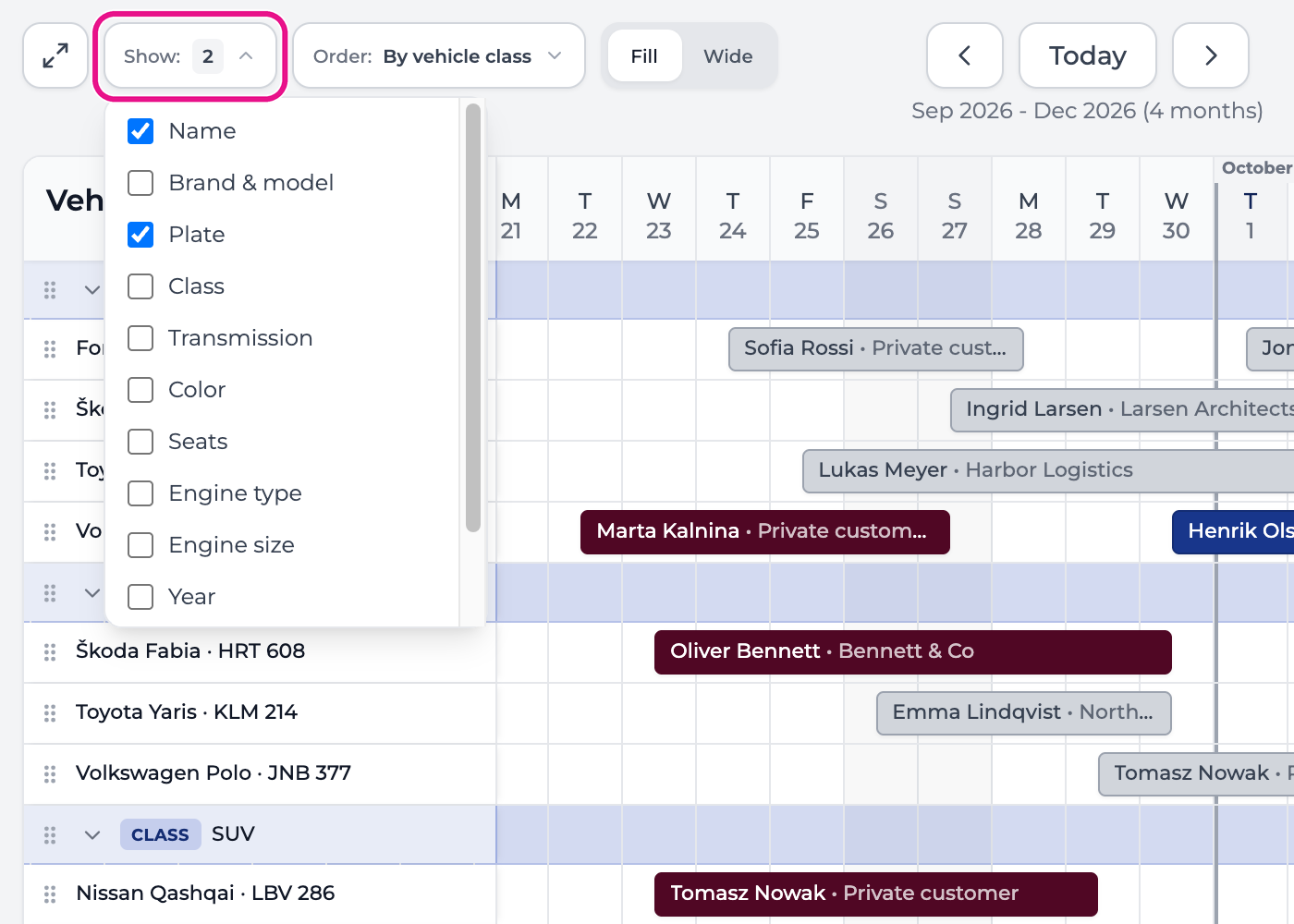
The available fields are Name, Brand & model, Plate, Class, Transmission, Color, Seats, Engine type, Engine size, Year, Euro standard and VIN. At least one field always stays on. The fields appear in the order of the list, separated by dots.
Choose the row order
Click Order in the toolbar, to the right of Show, and pick one of the eight options. The button always shows the order that is active.
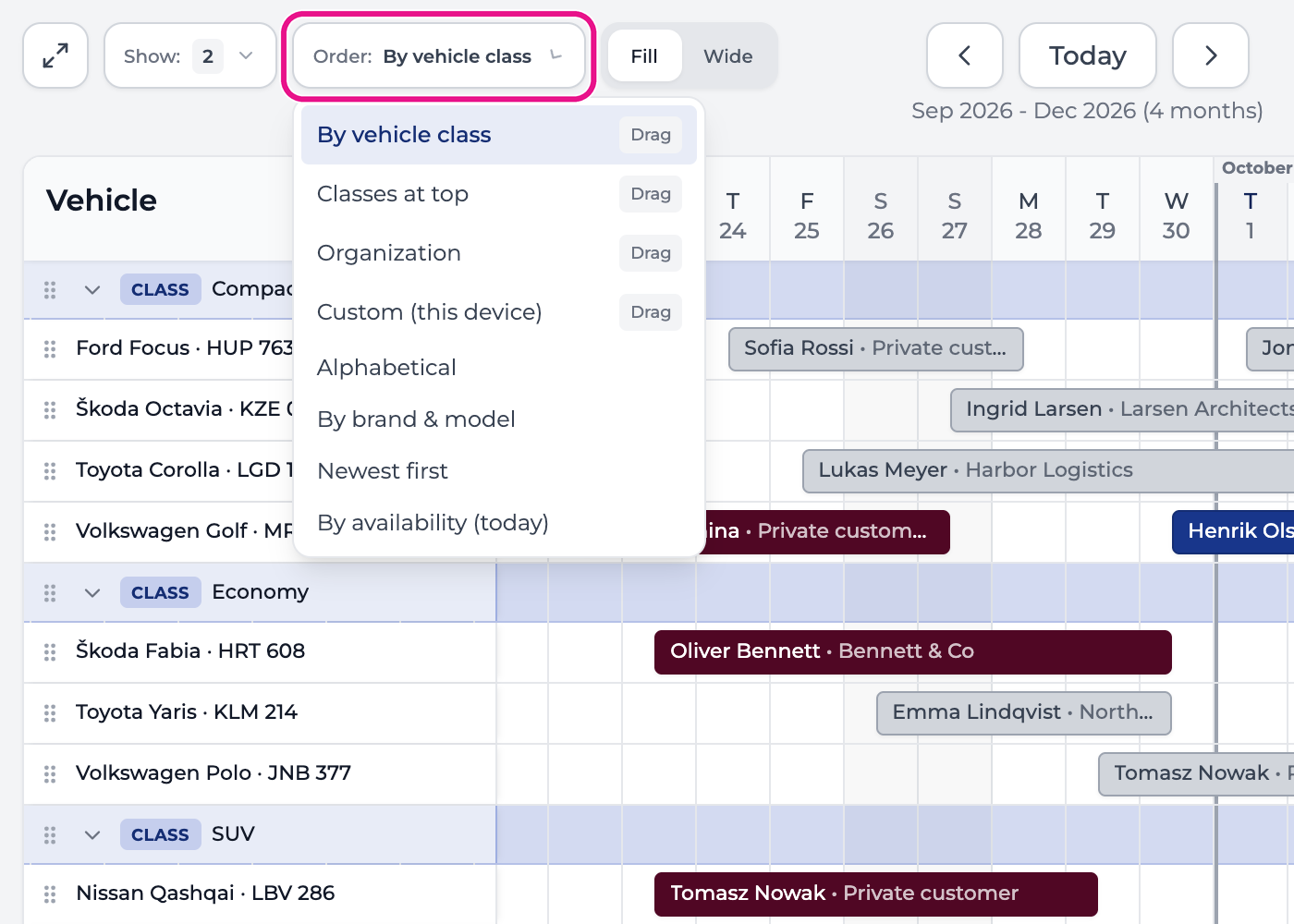
| Order | What you see | Can you drag rows? |
|---|---|---|
| By vehicle class | Each class row followed by its vehicles. This is the default. | Yes |
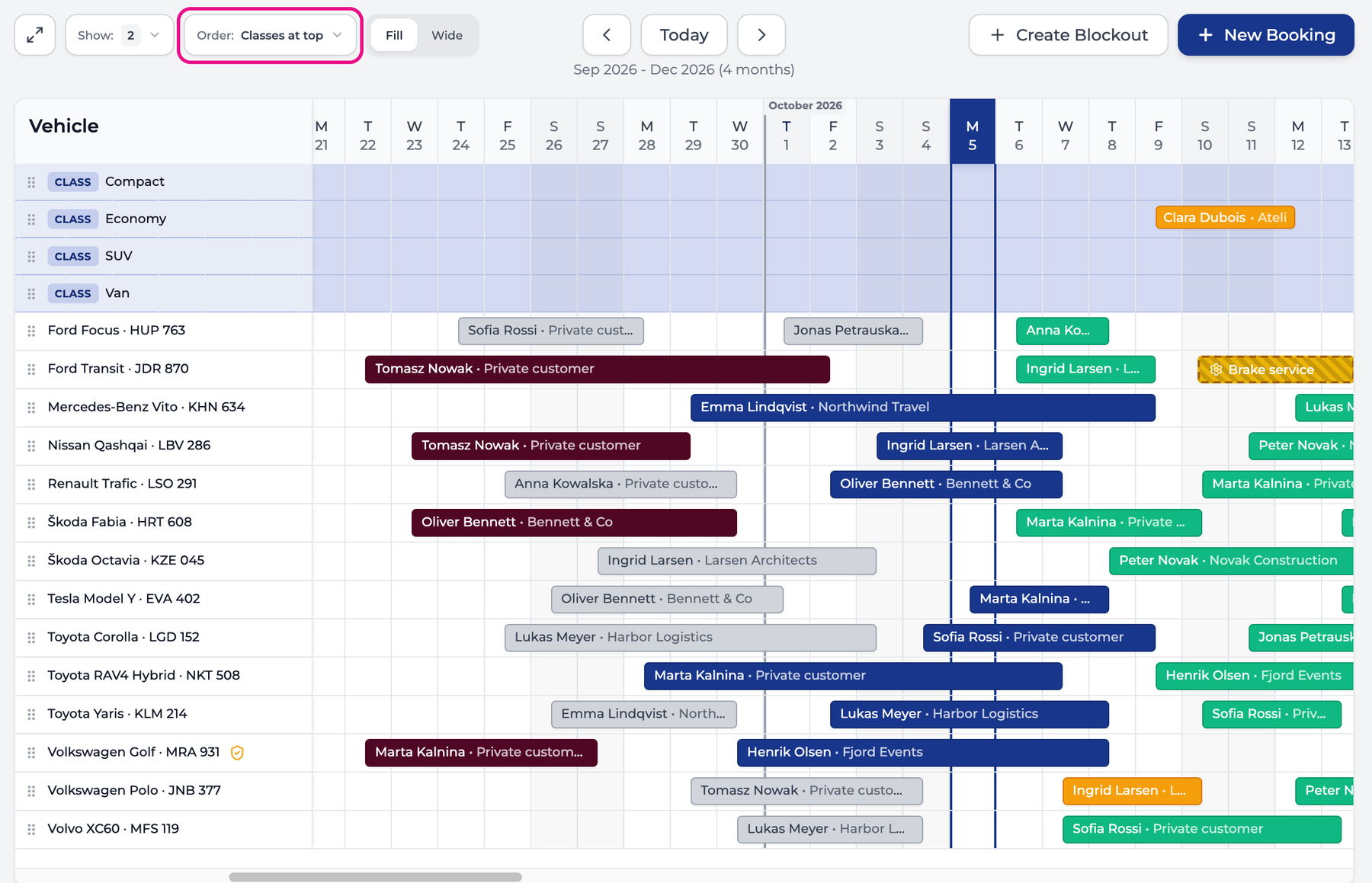
| Classes at top | All class rows pinned under the date header, vehicles in one list below. | Yes |
| Organization | One flat list in the order your organization has set. | Yes |
| Custom (this device) | One flat list in your own order. | Yes |
| Alphabetical | Vehicles A to Z by name. | No |
| By brand & model | Vehicles sorted by brand, then model. | No |
| Newest first | The most recently added vehicles first. | No |
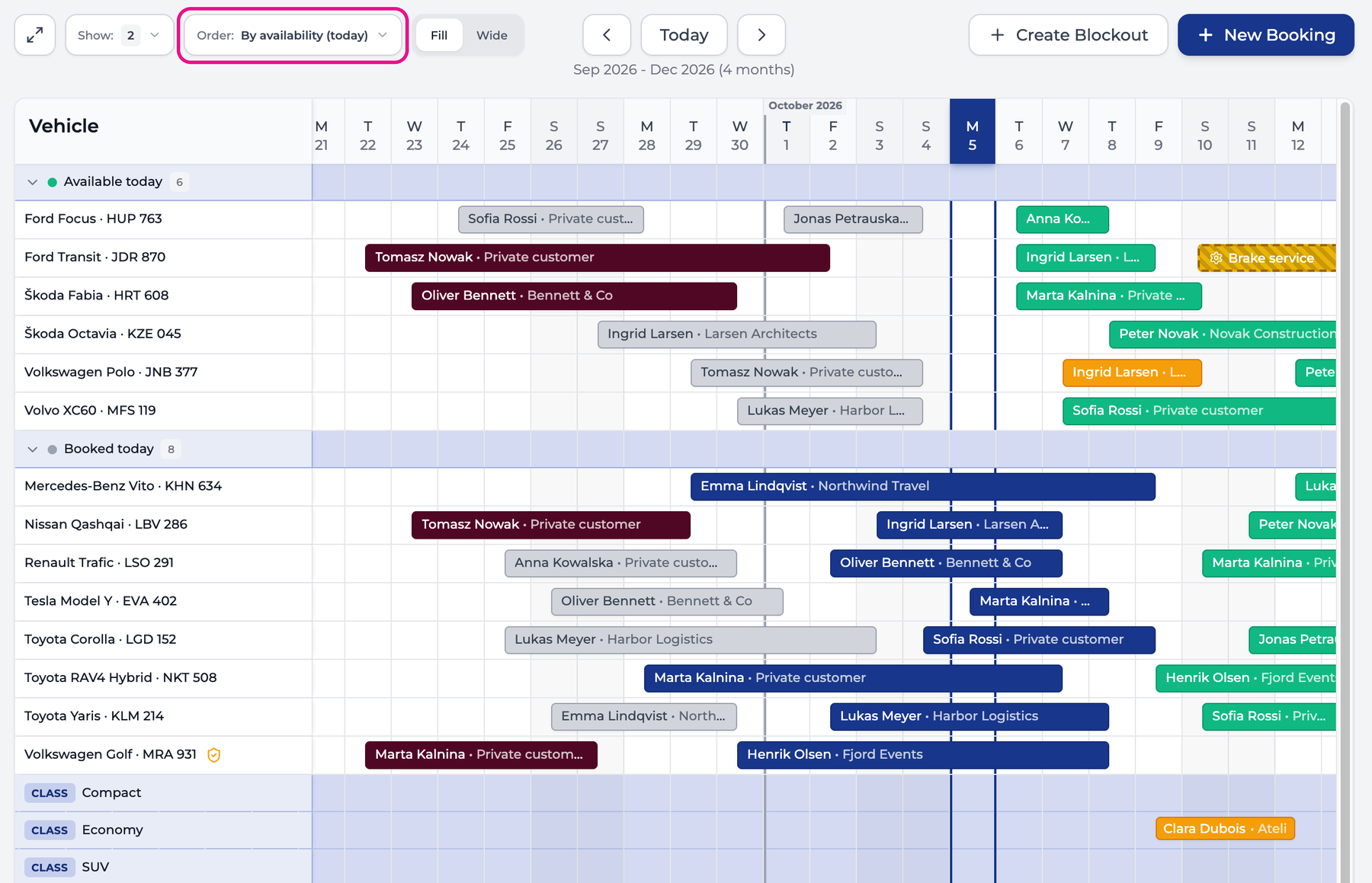
| By availability (today) | Two groups, Available today and Booked today. | No |
The order you pick applies to your browser only. Colleagues keep whichever order they chose.
Classes at top keeps class reservations in view while you scroll through a long fleet.
By availability (today) answers “what can I hand over right now”. The number next to each group is its vehicle count, and the chevron collapses the group.
Rearrange rows by dragging
In the four orders tagged Drag, a handle of six dots appears at the left edge of every row. Drag a row by its handle and drop it where you want it.
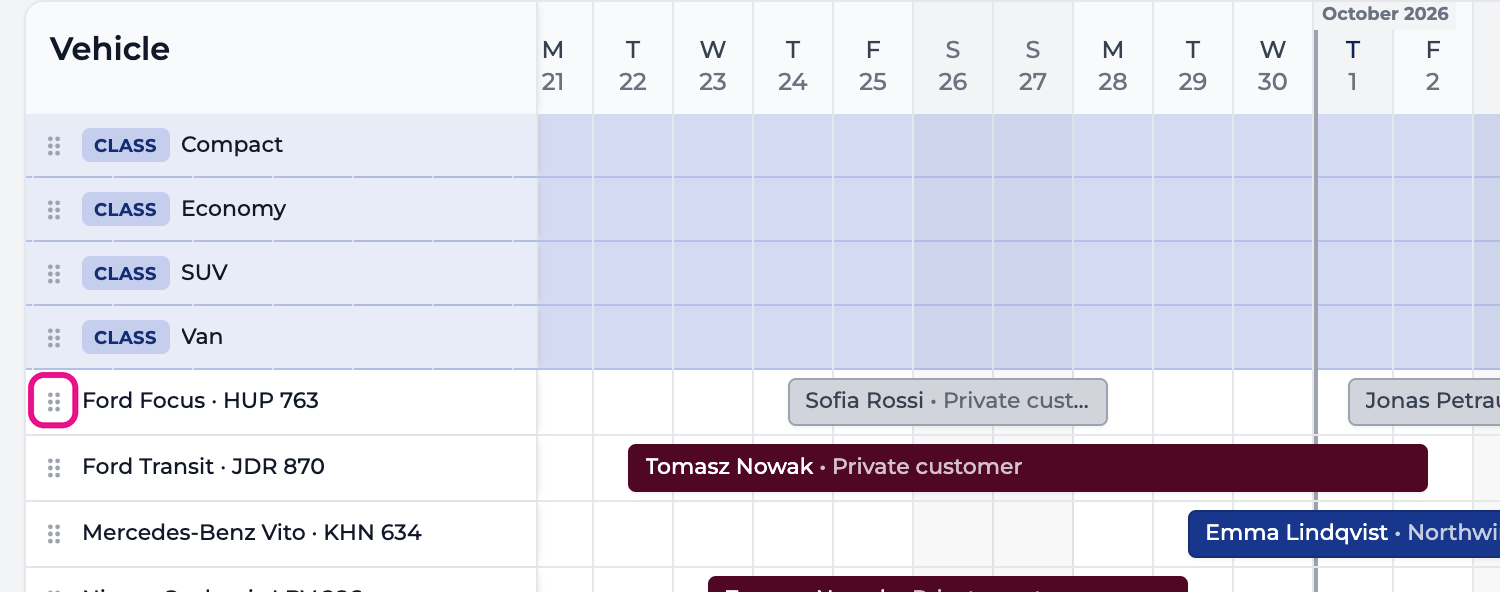
- In By vehicle class you can move a class above or below other classes, and move a vehicle within its own class. The calendar refuses a drop into another class, because that would change the vehicle’s class.
- In Classes at top and Organization you can move any row.
- In Custom (this device) you can move any row, and the result stays on your browser.
Be careful with the first three. By vehicle class, Classes at top and Organization are three views of one shared arrangement. A drag in any of them changes the order for everyone in your organization. Use Custom when you want an order nobody else sees.
Collapse a class
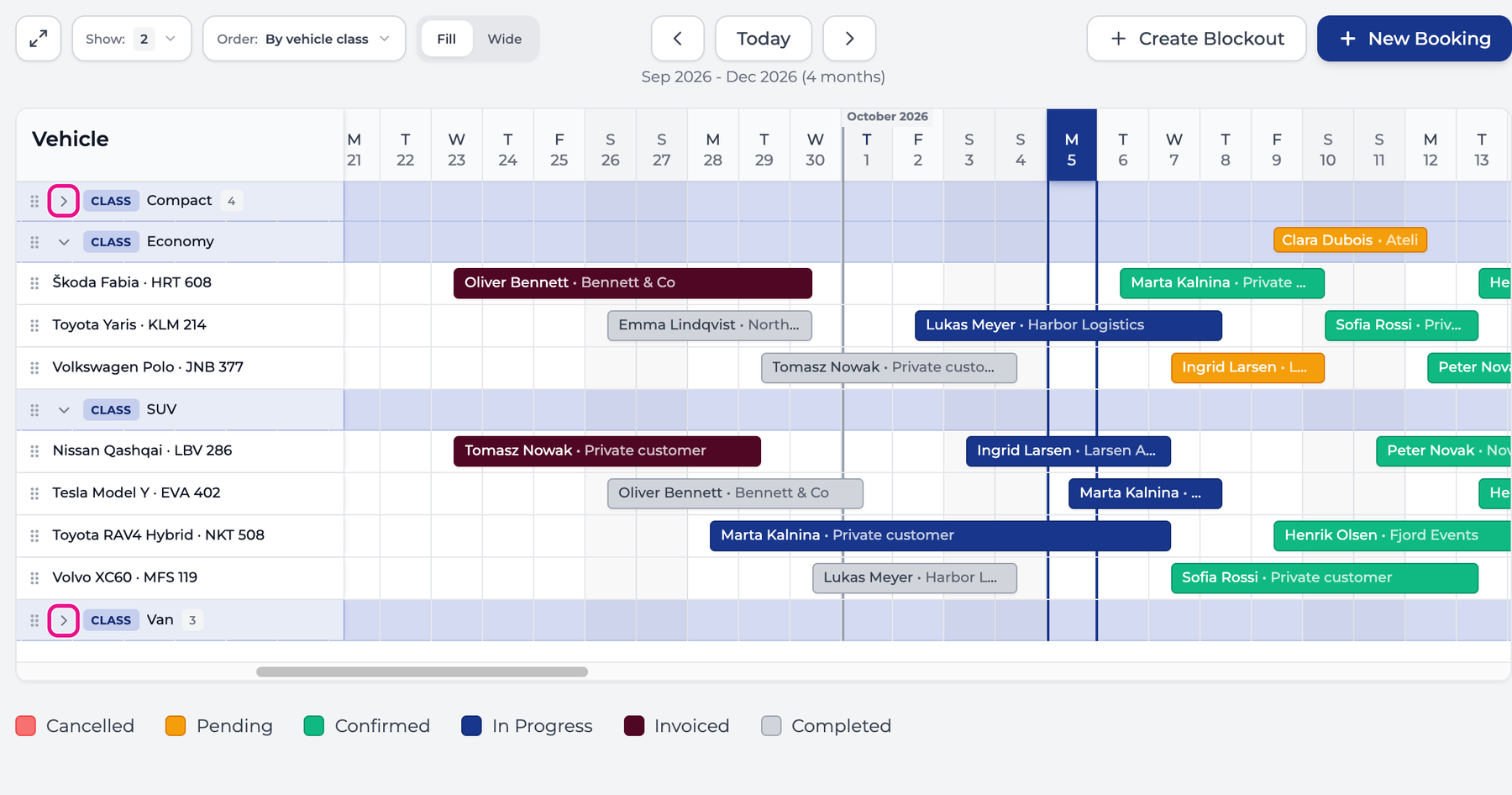
In By vehicle class, click the chevron at the left of a class row to hide that class’s vehicles. The class row stays, with the number of hidden vehicles next to it. Click the chevron again to bring them back.
Choose how wide the days are
The Fill / Wide switch sets the width of the day columns. It is the two-part button in the toolbar, to the right of Order.
- Fill fits as many days as possible on screen.
- Wide stretches one week across the full width, which leaves room to read customer names on short bookings.
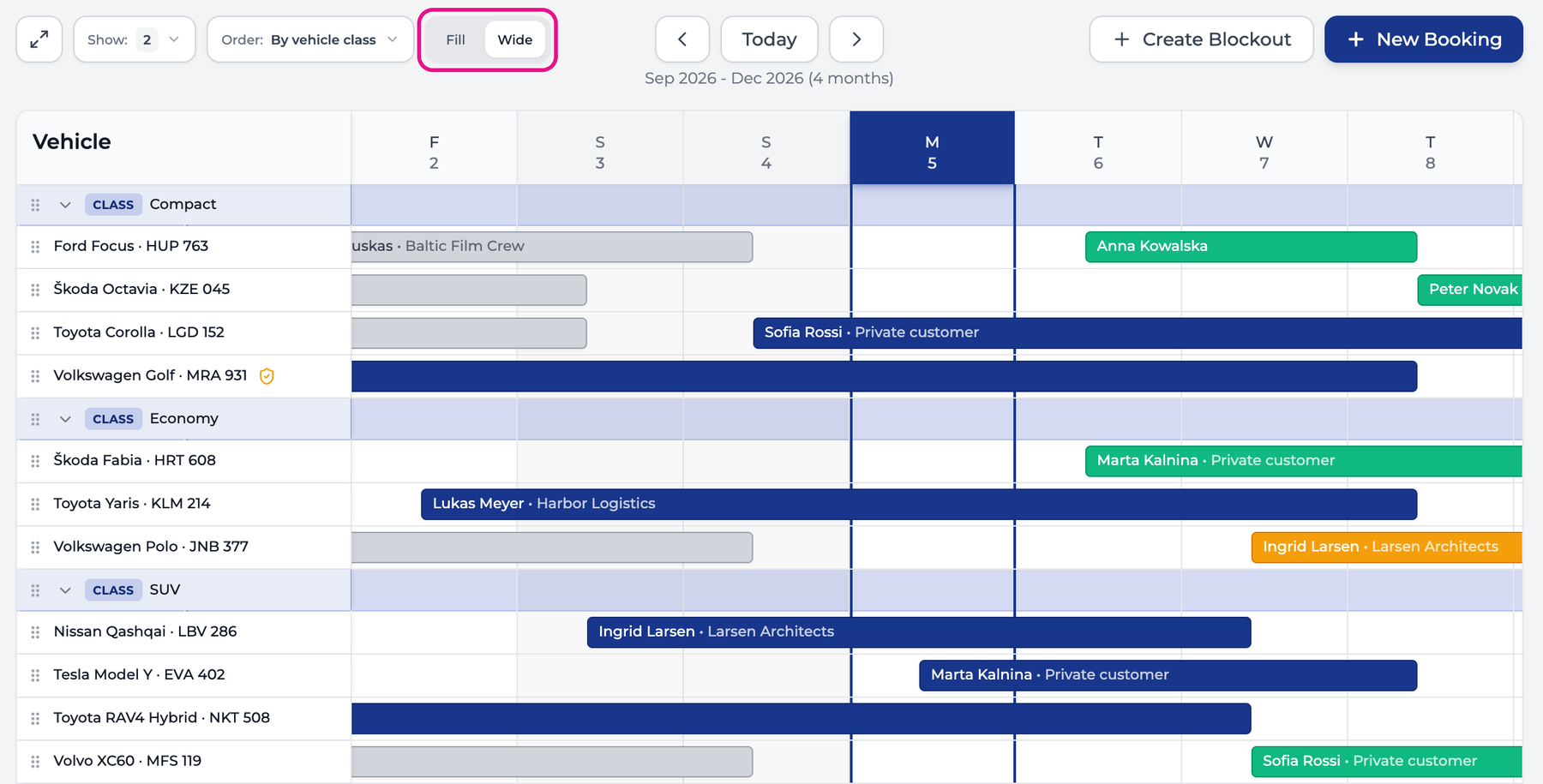
See Fill & Wide Views for a video of the switch.
Filter the calendar
The filter bar sits above the toolbar.
- Search matches a vehicle’s name, brand, model, plate or VIN, and also the company or client on a booking. A vehicle stays visible if either the vehicle or one of its bookings matches.
- All Classes limits the rows to the classes you tick.
- The statuses filter chooses which bookings appear. Cancelled bookings are hidden until you tick Cancelled.
- All Brands and All Types limit the rows by brand and by engine type.
The counter on the right, for example “14 of 14”, is how many vehicles pass the filters. Clear All resets everything, including the search.
Click Show Advanced under the search box for the rest. Once the section is open, the same button reads Hide Advanced.
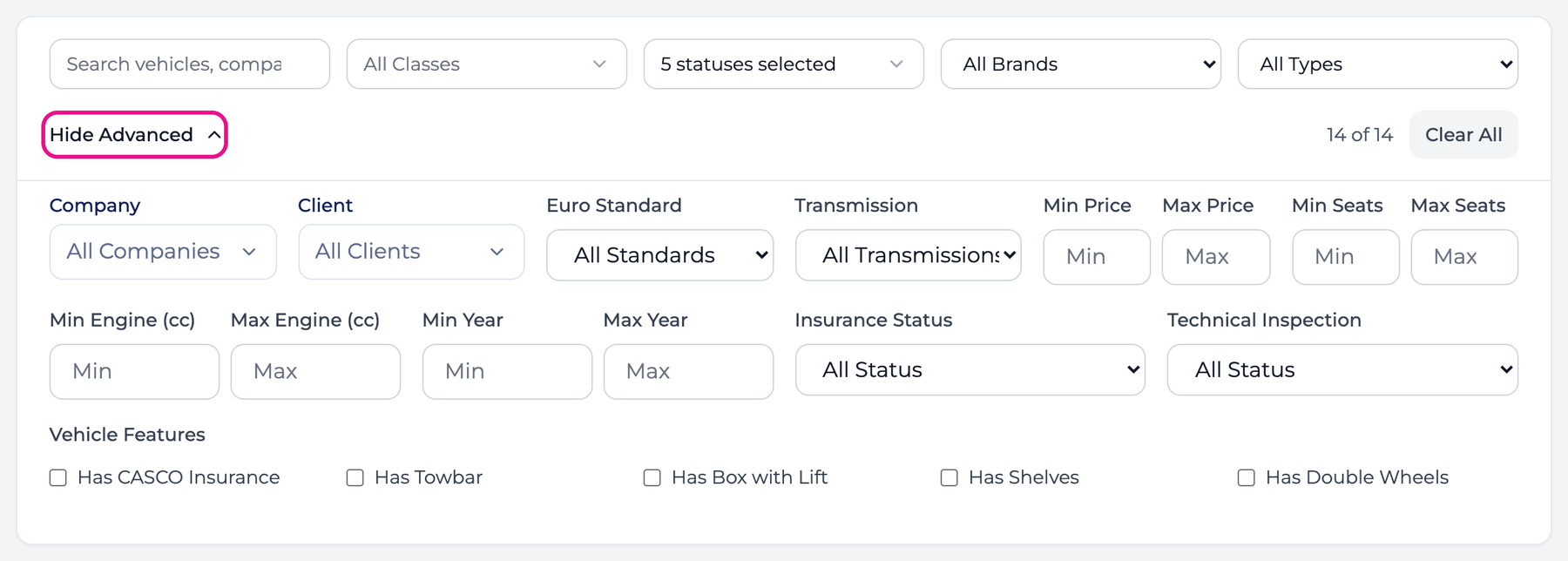
| Filter | Keeps |
|---|---|
| Company, Client | Vehicles that have a booking for that company or client |
| Euro Standard, Transmission | Vehicles with that value |
| Min Price, Max Price | Vehicles whose daily price is in the range |
| Min Seats, Max Seats | Vehicles with that many seats |
| Min Engine, Max Engine | Vehicles by engine size in cc |
| Min Year, Max Year | Vehicles by year of manufacture |
| Insurance Status, Technical Inspection | Vehicles whose document is Valid, Expired or Expiring Soon. Expiring Soon means within 30 days. |
| Vehicle Features | Vehicles with CASCO insurance, a towbar, a box with lift, shelves or double wheels |
Use the full screen
Click the button with two arrows at the left end of the toolbar.

The calendar covers the whole window and hides the sidebar, the filters and the toolbar. The filters, the order and the fields you set before still apply.
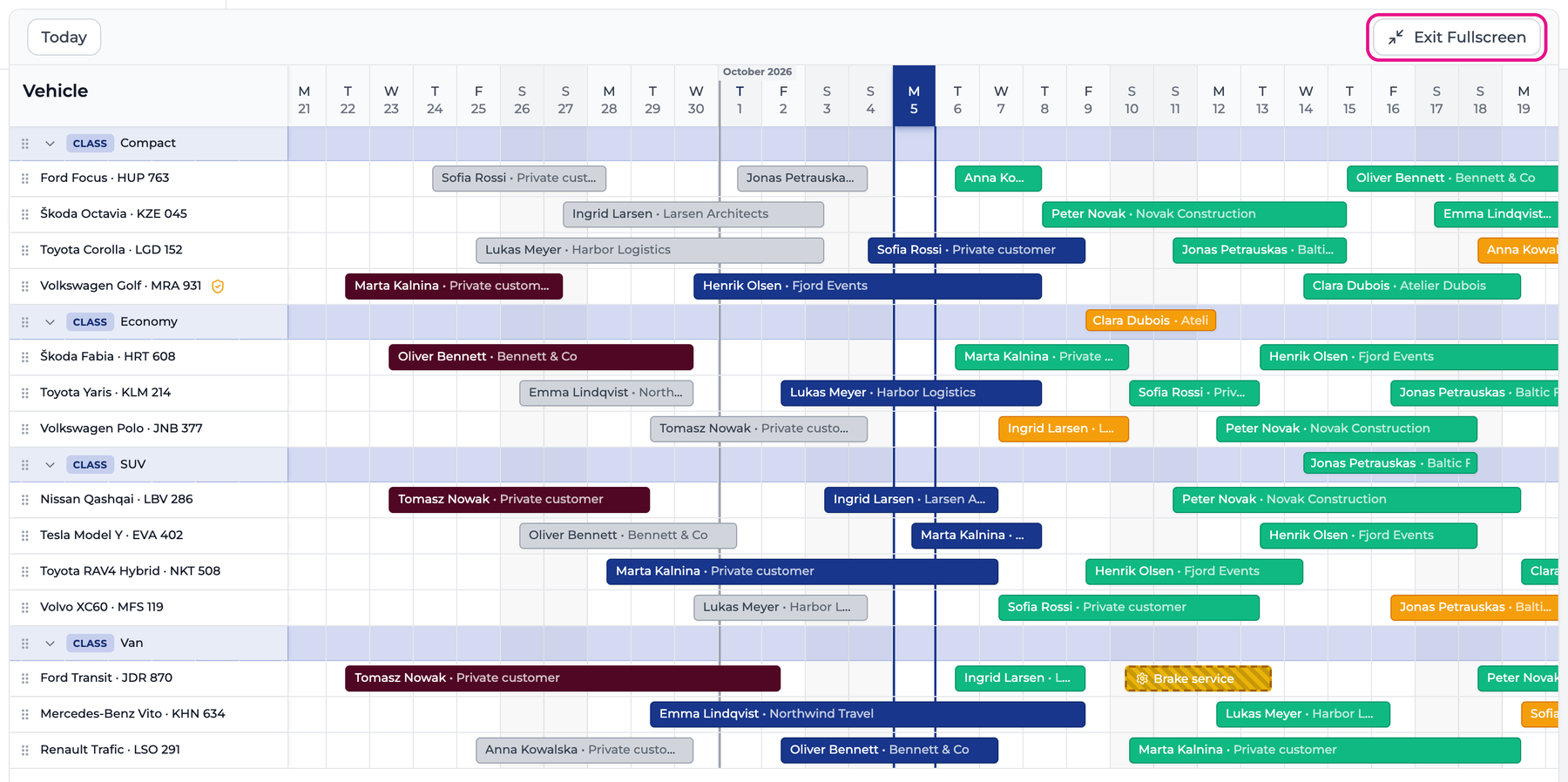
Today still jumps to the current date. Click Exit Fullscreen in the top right corner to go back.
On a phone or a narrow window
The same calendar works on a phone, with the controls folded away.
- The search box stays on screen. Tap Filters, marked 1 below, for everything else in the filter bar. A number on the button counts the filters that are on.
- Tap View, marked 2, for Show, Order and Fill / Wide. The second phone in the picture shows the menu open.
- The fullscreen button is hidden on phones.
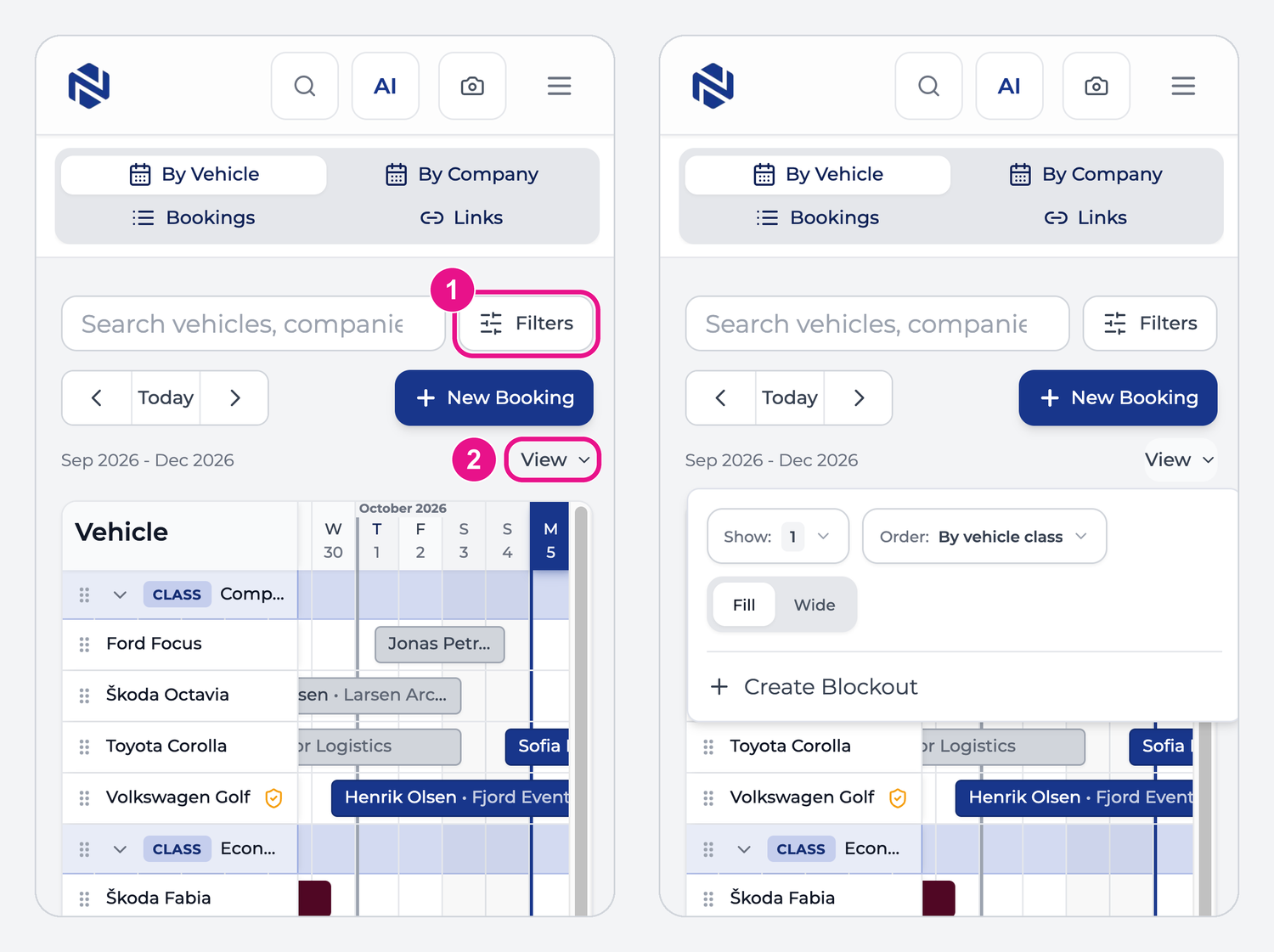
Tablets and small laptop windows also get the View menu when the toolbar runs out of room.
What the calendar remembers
| Setting | Remembered |
|---|---|
| Order, search text, status filter | In this browser, and in the page address. A copied link opens with the same three settings. |
| Class filter, Show fields, Fill or Wide, collapsed classes | In this browser |
| Rows dragged in Custom | In this browser |
| Rows dragged in By vehicle class, Classes at top or Organization | For the whole organization |
| Brand, engine type and advanced filters | Until you reload the page |
| Highlighted day, fullscreen | Until you reload the page |
Settings saved in the browser do not follow you to another device. Set them once on each computer or phone you use.