Pricing on a booking
Every booking page has a Pricing card that shows how the total is built. This page covers changing a price, adding add-ons and custom charges, and collecting the extra money, including after the rental has ended.
It describes fixed-date bookings. Leases and open-ended rentals differ in a few places.
Read the Pricing card
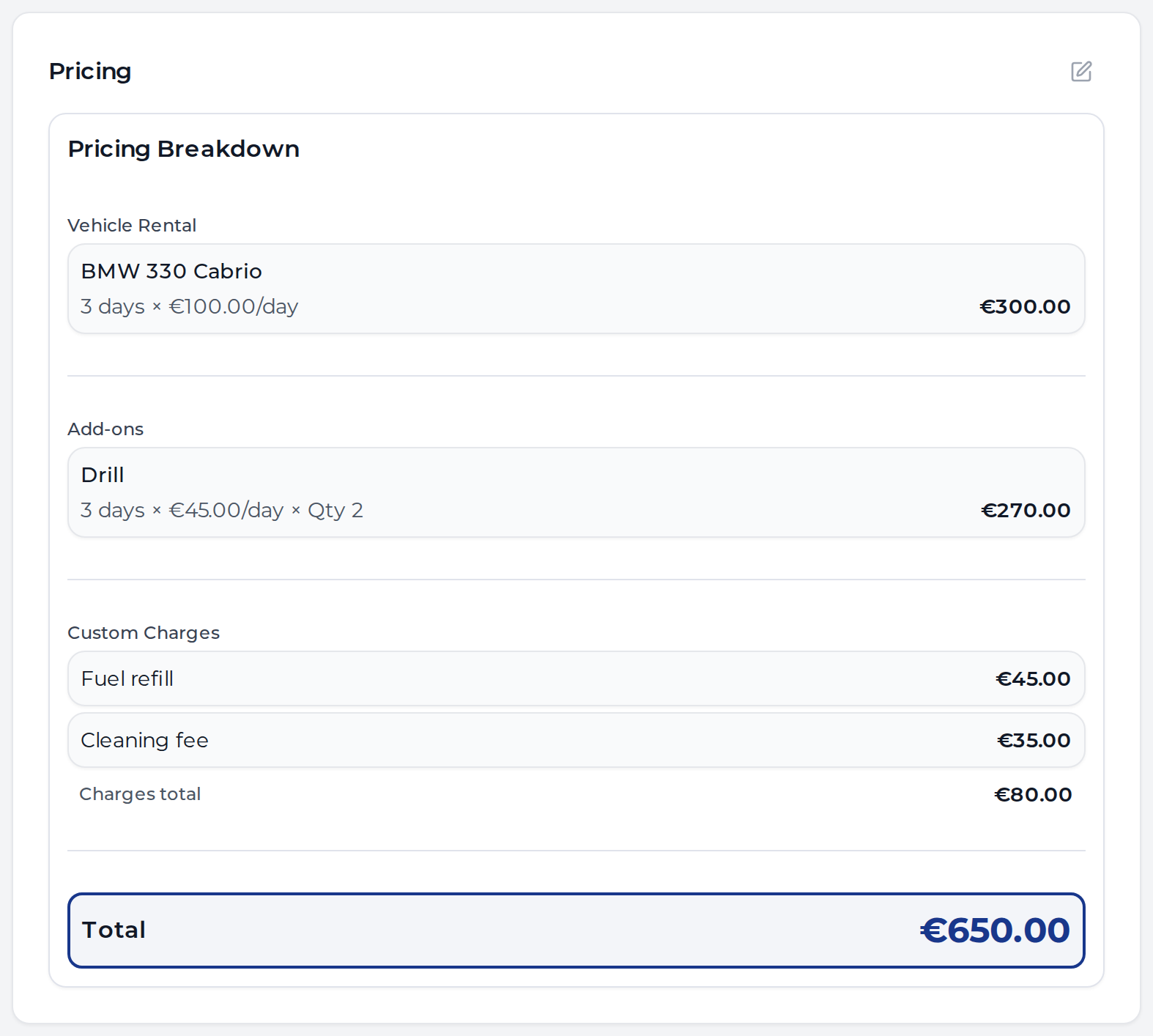
- Custom Charges are costs you added by hand, such as fuel, cleaning or a fine.
- Mileage Overage is the distance over the allowance, added at check-in. See Distance Allowances.
- If your prices have VAT added on top, the card ends with Total (excl. VAT), VAT and Grand total.
Badges mark what was changed by hand. On the vehicle, Custom Price means the rate was changed, and a days badge such as 2 days means the days billed differ from the length of the booking. On an add-on, Custom means a changed price and One-time means it is charged once instead of per day.

Edit the pricing
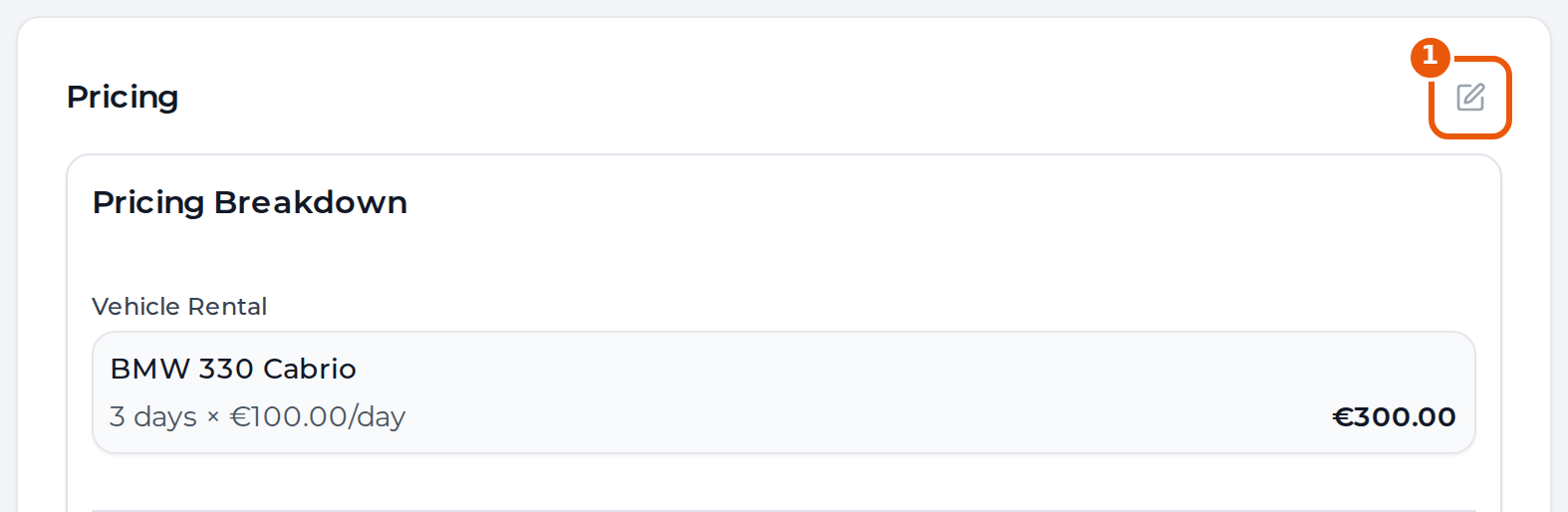
- Click the edit icon in the top right corner of the Pricing card.
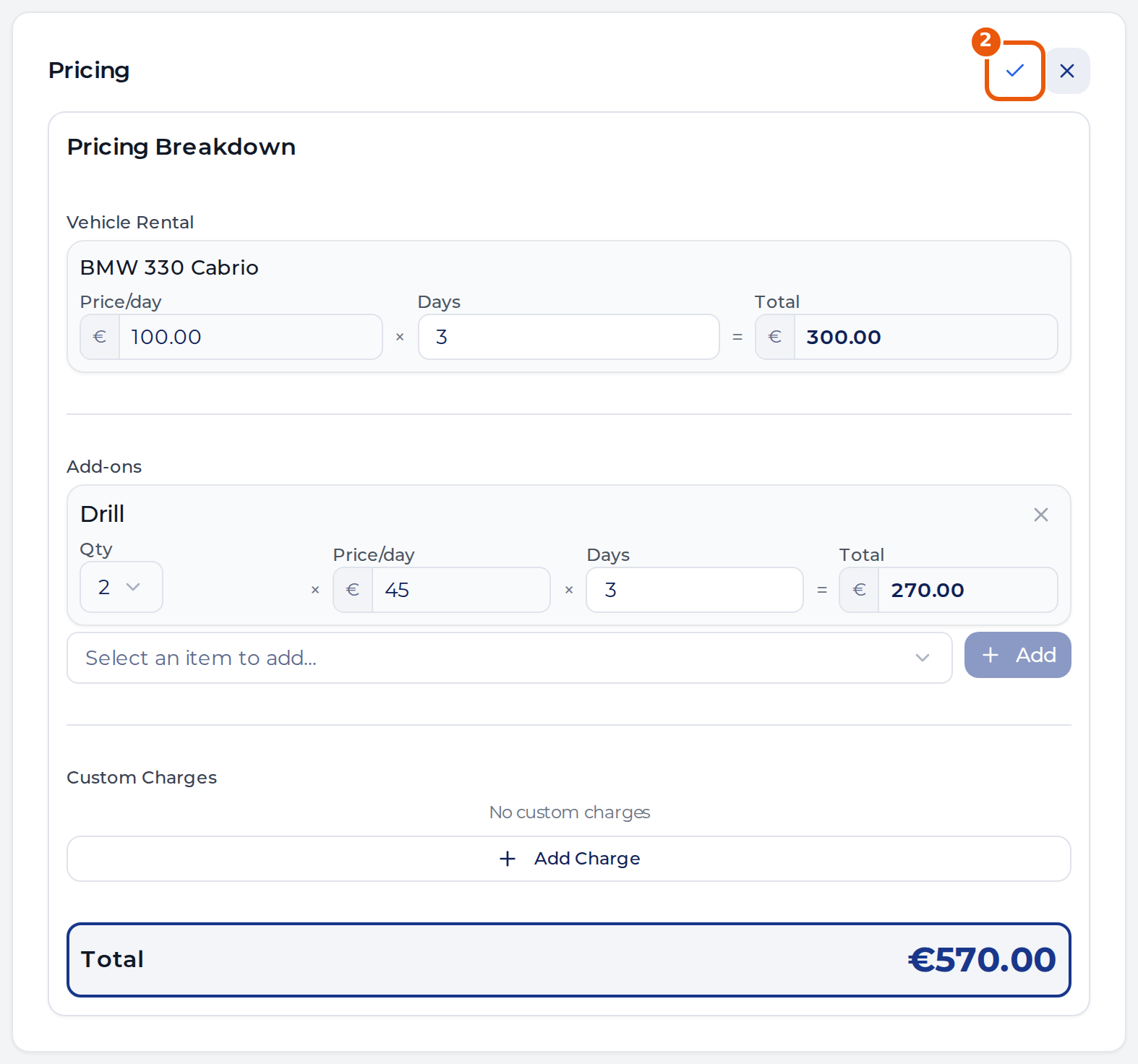
- Change what you need, then click the check mark to save. The X next to it cancels.
The check mark saves the rental price, add-ons and location surcharges together. Custom charges and removing a discount save on their own, and the X does not undo them.
Change the rental price
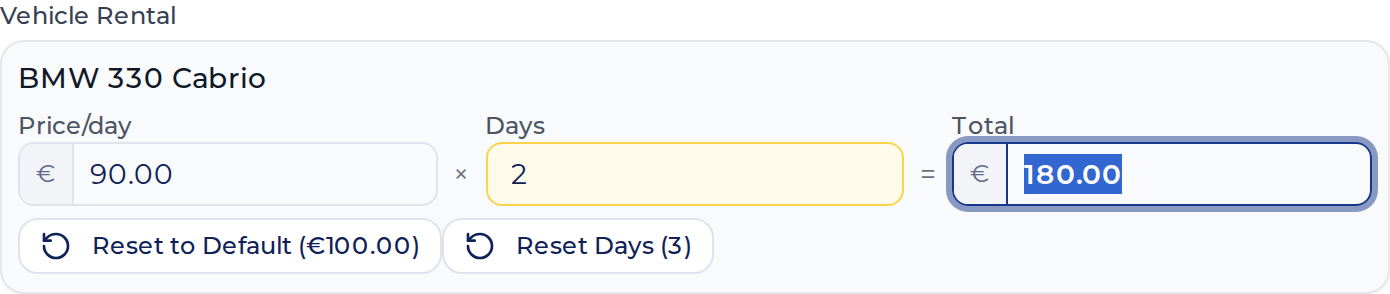
- Price/day. Type the rate you agreed. The total follows.
- Total. Type the amount you agreed for the whole rental, and Nomora works out the price per day. This is the vehicle only. Add-ons, surcharges and charges come on top.
- Days. The number of days you bill. It does not change the booking’s dates. Use it to bill 2 days on a 3-day booking.
Reset Days puts the days back to the length of the booking. Reset to Default puts back the price you started with, but only until you save. After that, type the price you want.
If seasonal or demand pricing changed the rate, Remove seasonal pricing puts the plain rate back for this booking.
Bookings billed by the hour show Price/hour and Hours instead.
Add-ons
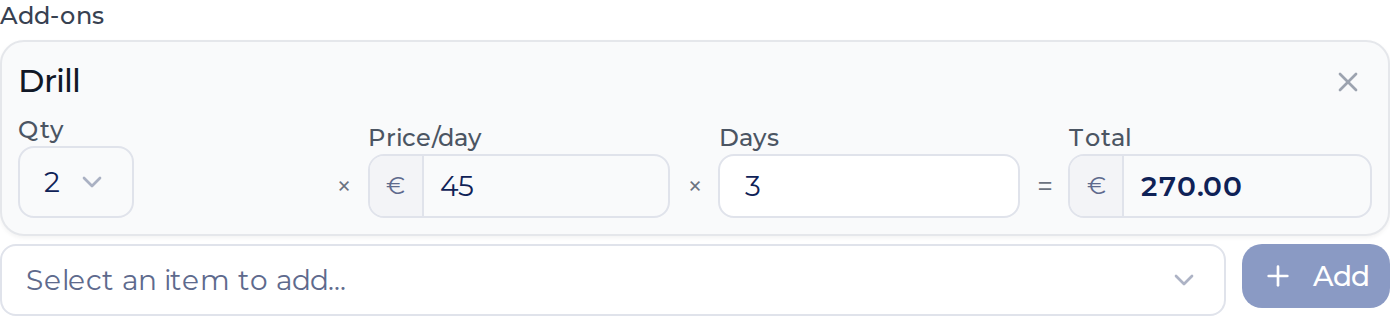
Pick an item under Select an item to add… and click Add. On the new row, set the Qty. For an item priced per day you can also change Price/day, Days and Total, the same way as for the vehicle.
To remove an add-on, click the X on its row.
If the item has duration tiers, the row uses the price for this booking’s length, which can differ from the price in the list.
Location surcharges and discounts
If the booking has a pickup or return location, you can change each fee under Location Surcharges.
A discount can’t be changed here, only removed. Click the X next to it and confirm.
Add a custom charge
Use a custom charge for a cost that isn’t part of the rate: fuel, damage, cleaning, a fine.

- Click the edit icon on the Pricing card.
- Click Add Charge under Custom Charges. A new row appears above the button.
- Type a description and an amount, then click Save on the row.
The charge is saved at step 3. Close the editor with the check mark or the X, and the charge stays either way.
- Change a charge. Edit its description or amount in the same place. The change saves a moment after you stop typing.
- Delete a charge. Click the X on its row and confirm.
- The customer sees the description on their booking page, so write it for them.
If your prices have VAT added on top, that applies to the rental, add-ons and location surcharges. Custom charges are added as entered, so enter the full amount the customer should pay.
After a price change
Saving recalculates the total, the remaining balance and the payment status in the Payments section.
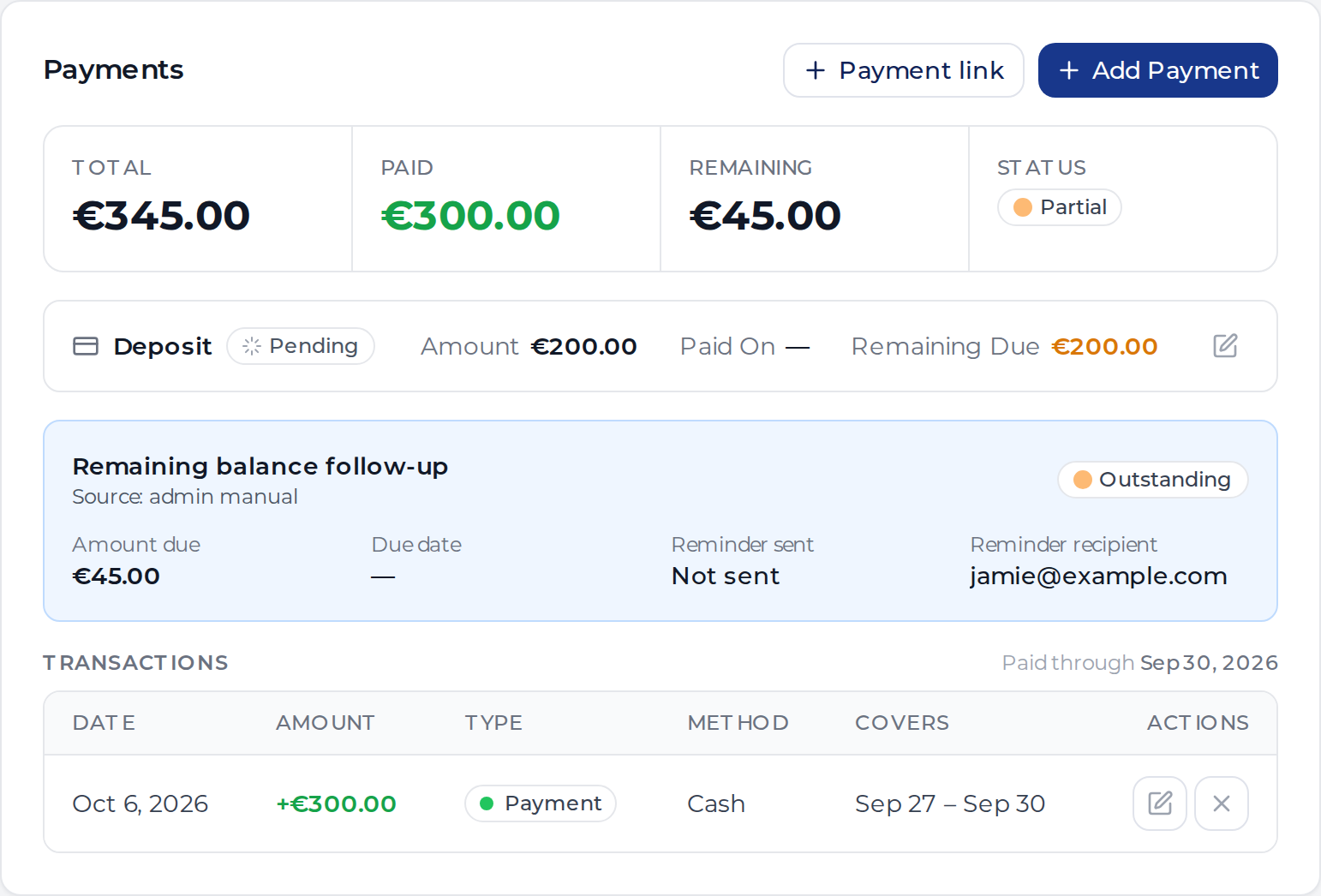
- The total went up. On a booking that was paid, the difference shows as Remaining and the status changes to Partial.
- The total went below what the customer paid. The difference shows as Overpaid. Changing the price does not return the money. Follow the overpayment return steps, which explain when Stripe records the refund automatically. Alternatively, click Allocate to deposit to keep it as part of the security deposit.
Invoices and documents you already created stay as they were. Follow the invoice correction guide before replacing an invoice. To update a booking document, use the document editing steps.
Collect a charge after the rental
Some costs only show up once the vehicle is back: an empty tank, a scratch, a parking fine. You can still charge the customer on a booking that is paid and completed.
- Add the cost as a custom charge. The paid booking now has a balance and the status Partial.
- Click Send reminder at the top of the booking page. The customer gets an email with the amount due and a button that opens their booking page.

- The customer clicks Pay balance on that page and pays online. Nomora records the payment on the booking.
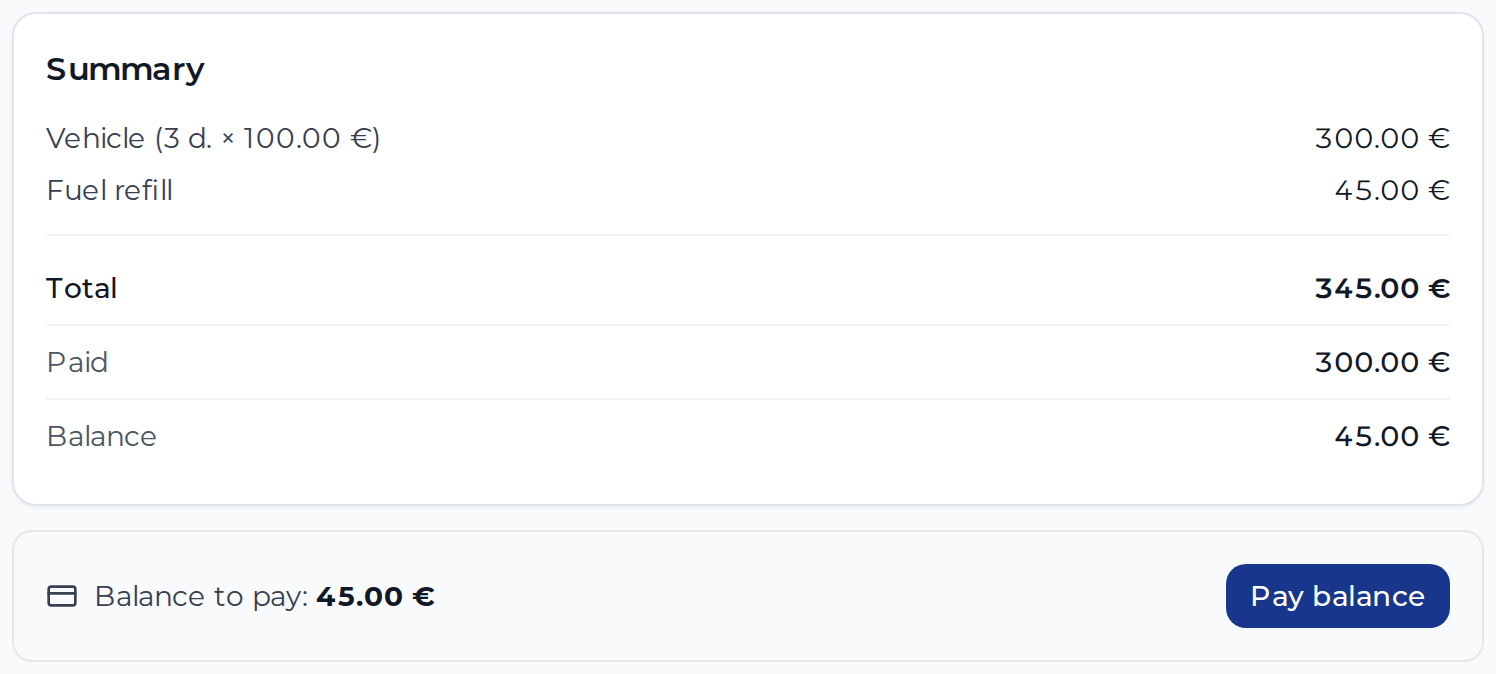
After the first email the button reads Resend reminder.
Send reminder needs three things:
- a booking that is partly paid. A booking with no payment yet gets its first payment through the customer link instead.
- an email address on the booking’s customer
- Stripe or Montonio connected to your account
It isn’t available for cancelled, rejected or expired bookings, because the customer’s booking page no longer takes payment for them.
If the customer pays in cash, by card at your desk or by bank transfer, skip the email. Click Add Payment in the Payments section, keep the type as Payment and enter the amount.
A charge is not compensation. The Compensation payment type is for money you pay to the customer, such as a goodwill gesture, and it asks the customer for nothing. To collect extra money, add a custom charge.
Leases and open-ended rentals
These bookings have no price breakdown. Their Pricing card shows the payment schedule or the recurring rate.
- Custom charges have their own block on the card. Click Add Charge there, and use the icons on a charge to edit or delete it. You don’t need the edit icon.
- On an open-ended rental, the edit icon changes the Weekly rate or the Monthly rate.