Collect or record a payment
Use a customer link to collect money online. Use Add Payment on the booking to record money received in cash, at your card terminal or by bank transfer.
Record a payment you have received
- Open the booking and click Add Payment in Payments.
- Enter the amount received and its payment date.
- Keep Payment selected for rental money. Choose Deposit for a refundable security deposit.
- Check the covered period for a rental payment. Enter the amount actually received, even if the suggested amount is different.
- Select the payment method. Add a transaction reference or note if you need it for reconciliation.
- Click Add Payment, then check the transaction and the updated rental or deposit balance.
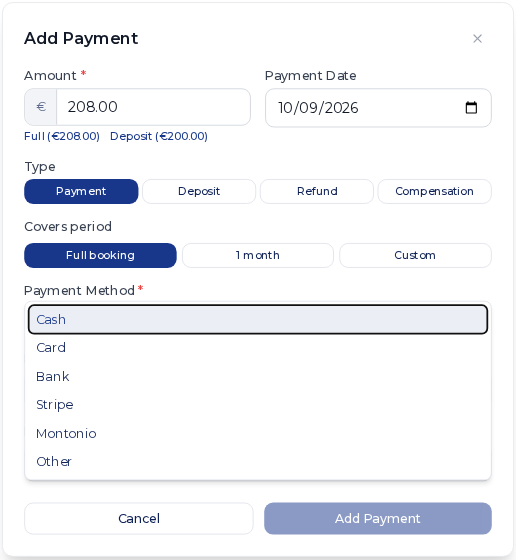
Card records money received through your own terminal. Selecting Stripe or Montonio as the method also only records a transaction. This form does not charge a card or send a payment request.
If one payment included both rent and deposit, check whether Nomora split it into separate transactions. Allocate an existing overpayment to the deposit if it belongs there.
Collect online
First connect a payment provider in Settings → Payments.
- Under Stripe Connect, choose the business country and click Create Stripe payment account, or connect an existing account. Complete Stripe’s onboarding, turn on Enable Stripe Payments and save. Check that charges are enabled.
- For Montonio, enter the access and secret keys, choose the environment, test the connection and save the settings. Montonio payments use EUR.
Return to the booking and create or send its customer link. The customer opens the link and pays the amount it requests. A successful online payment adds a transaction to the booking automatically. Check that transaction before recording anything manually.
To include the security deposit in the first online payment, enable Collect security deposit upfront in Settings → Payments and save. This is the default for Customer links and Guest Book. A customer or an individual Customer link can have a different setting. Cash and inquiry-only bookings do not collect it online.
Collect a remaining balance
If the customer has already paid part of the rental, click Send reminder at the top of the booking. The email opens the customer’s booking page, where they can click Pay balance. After the first email, the button becomes Resend reminder.
This needs a partial payment, a customer email address and a connected Stripe or Montonio account. Cancelled, rejected and expired bookings cannot collect through that page. For a first payment, send the customer link.
A reminder requests the current rental balance. To collect a new fuel, damage or cleaning cost, first add it through the Pricing card.
Correct a recorded transaction
Use the pencil on its transaction row to correct an amount, date, method, reference or note. The X deletes the recorded transaction after confirmation. Neither action changes money already transferred by a bank or payment provider.
Refunds and deposit returns have different effects. Follow Return a deposit or rental overpayment before recording money paid back.