Fill in and save data
Admins, Members and Mechanics can all fill in the grid. Admin viewers and Viewers see it and cannot edit it. You change as many cells as you like, then save them together.
Edit a cell

Click a cell under one of your own columns and type. Enter confirms, Tab moves to the next cell, and Esc cancels. To clear a cell, delete its contents and press Enter.
A checkbox toggles with one click. A cell that already holds a link opens the link when clicked, so click the edge of the cell to edit it.
Dropdown cells
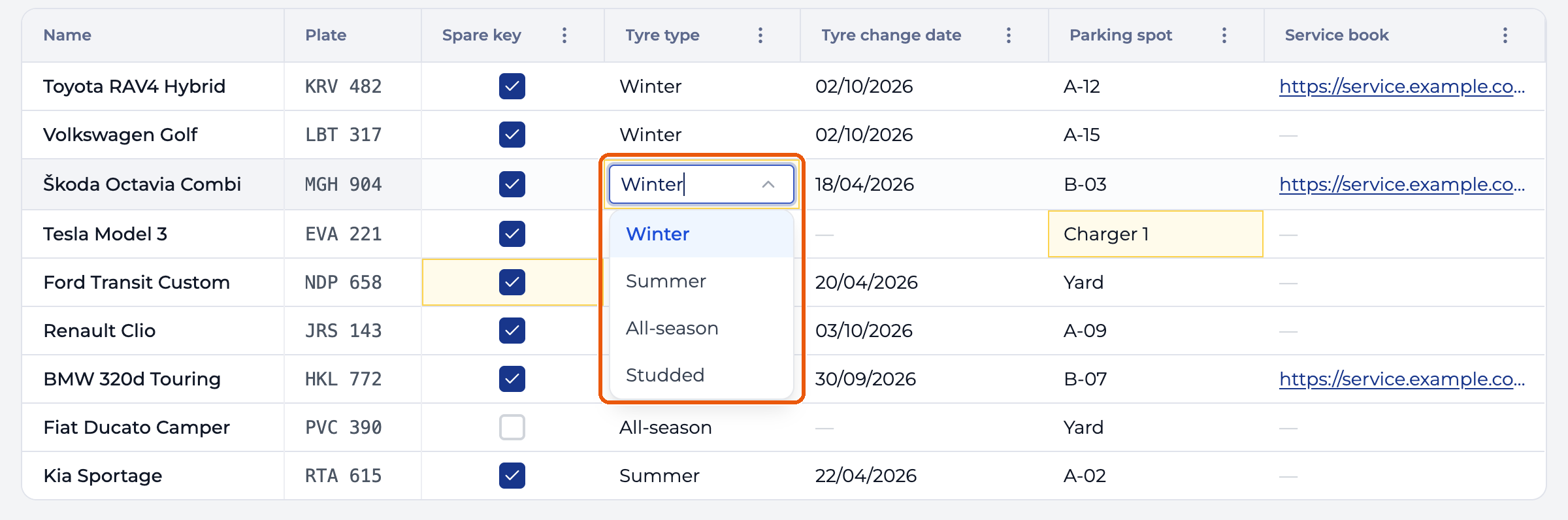
Click the cell and pick an option. If the column lets staff add options, you can also type a new value and press Enter.
Save your changes
Changed cells turn amber, and a bar appears at the bottom of the screen. Nothing is saved until you click Save All.
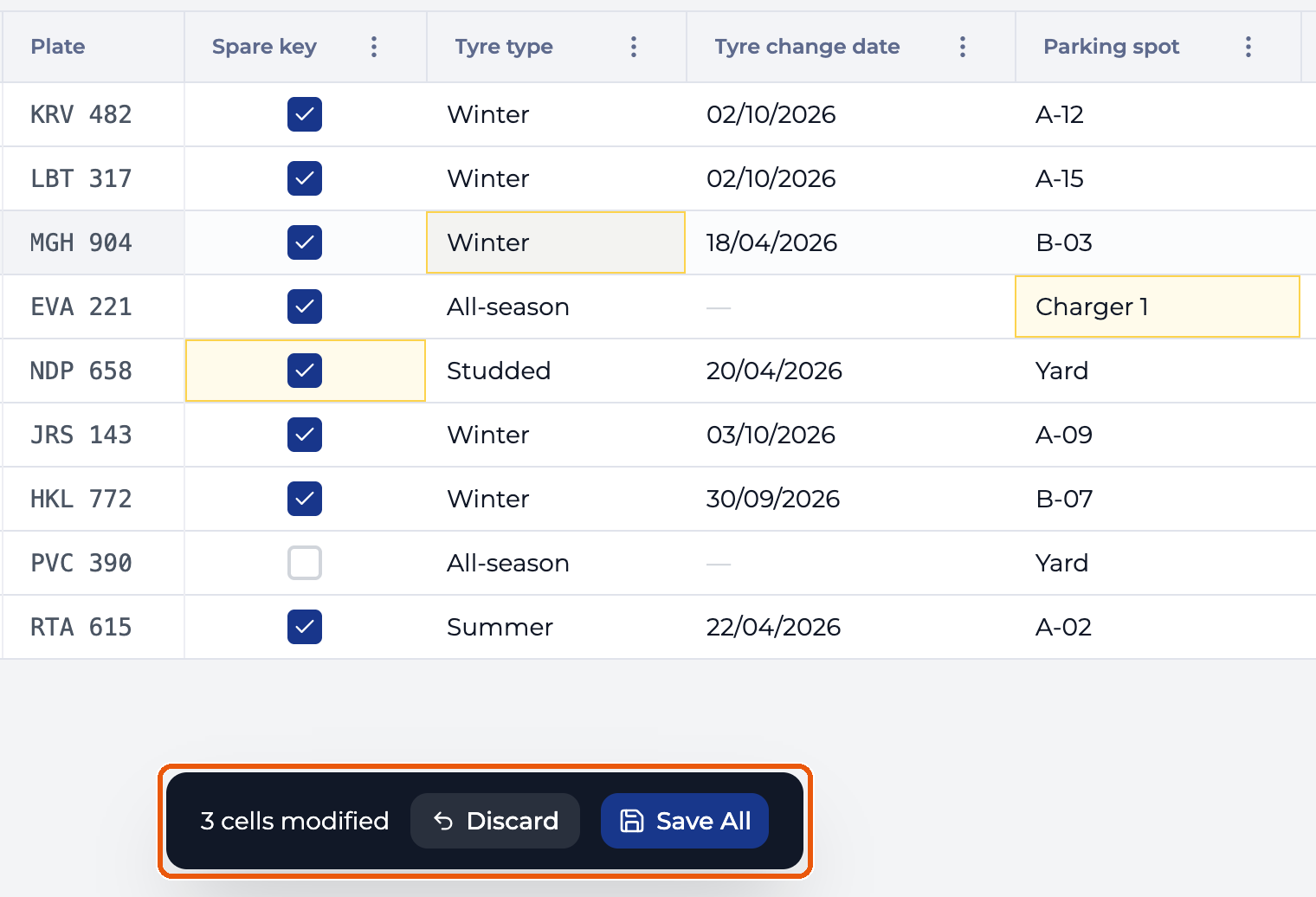
Discard throws the changes away.
Save before you move on. Your browser warns you only when you close or reload the tab while the bar is showing. A cell you are still typing in doesn’t count until you press Enter or Tab or click another cell, so finish it first. Switching to another tab or page inside Nomora, including Vehicles or Actions, drops unsaved cells without a warning.
When a save fails
A value doesn’t fit its column, and the message names the column. Look for text in a Number column, a link that doesn’t start with http:// or https://, or a value that isn’t on a fixed dropdown list. Your edits stay pending, so fix the cell and click Save All again.
Find a vehicle
The search box above the grid matches name, plate, make, model and class. It doesn’t look inside your own columns.