Customer links and schedule edits
Use a customer link to complete a booking you have already created. Start with creating and sending the link, or check messages and reminders. The schedule settings below control what customers can change before confirmation.
Customer schedule edits
For customer pickup and return photos through the same booking link, see customer inspections.
Let customers adjust the pickup and return schedule while they confirm a shareable booking link. You decide which parts they can change. Allowed edits re-check vehicle availability, update the price, and update the booking directly. There is no separate approval step. The feature is off by default.
Where to configure
Go to Settings → Channels → Shareable links. Under Customer confirmation schedule edits you’ll find two toggles and an edit scope:
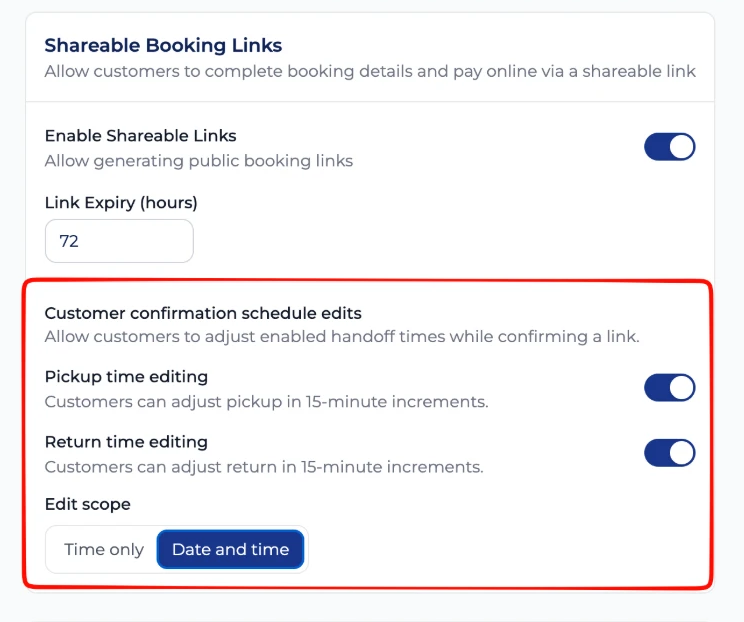
- Pickup time editing: let customers change the pickup
- Return time editing: let customers change the return
- Edit scope: choose what they can change:
- Time only: adjust the time of day; the date stays fixed
- Date and time: move the rental to another available day and time
- Click Save Changes
The scope applies to whichever endpoints you enable. Turn on one, the other, or both. Leave both off to prevent customer schedule edits.
The policy is operator-wide. It applies to every customer link immediately, including links you already sent that haven’t been confirmed yet. There is no per-link setting.
What the customer sees
On the booking link’s Review & Pay step, the order summary shows the pickup and return with the fields you enabled. Time is chosen from a 15-minute picker, and the date stays visible even in time-only mode.
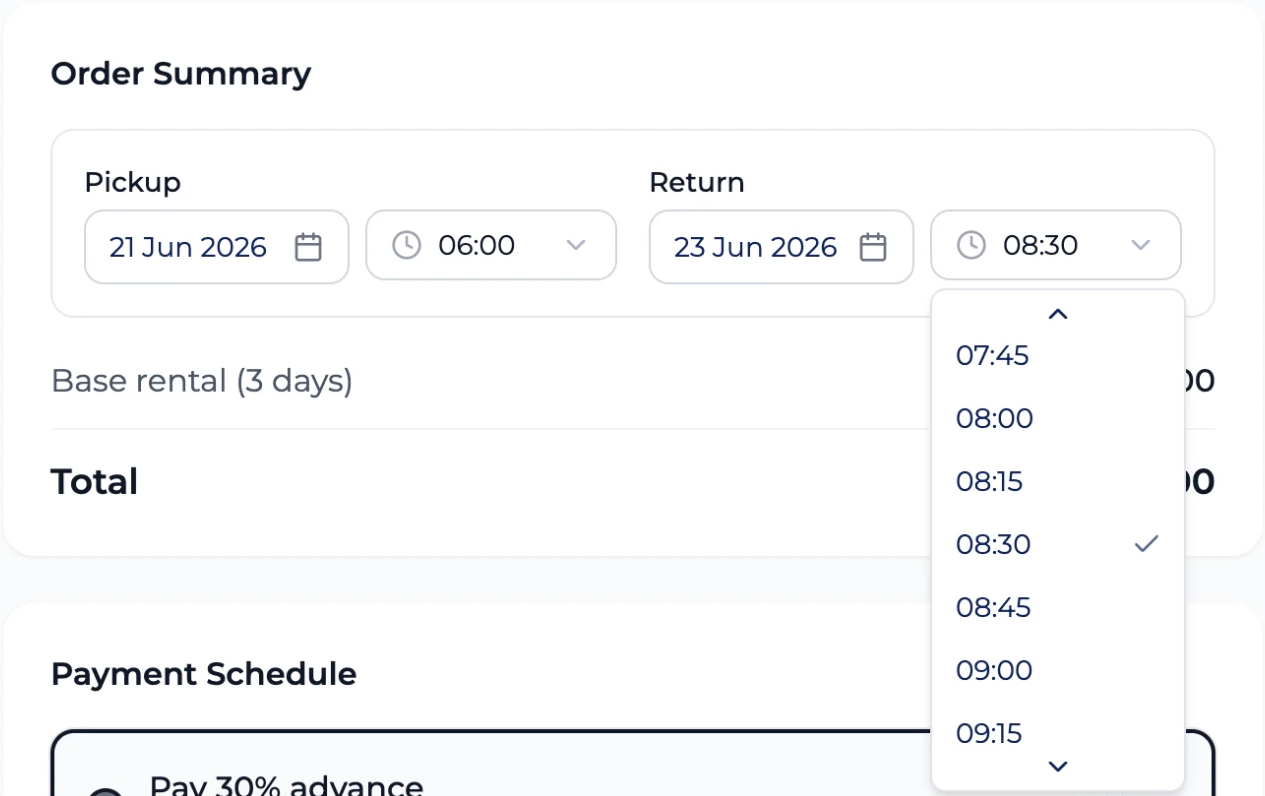
- Time options are in 15-minute steps
- “Date and time” scope also shows a date picker
- The total and the pay-now amount update before the customer confirms
- If the new schedule isn’t available, the customer is asked to pick another time and the fields revert to the last valid value
When it’s available
Schedule editing appears on a customer link only when all of these are true:
- The booking has an assigned vehicle
- The booking is live and hasn’t started yet (pre-rental)
- The link hasn’t been confirmed yet
- The confirmation deadline hasn’t passed
After confirmation, or once the rental is active or finished, schedule changes are operator-managed.
Payments
The customer always confirms against the current price.
- If payment is part of the link, the pay-now amount uses the recalculated total
- If a change creates a new balance or an overpayment outside the active payment step, it stays in the normal booking payment workflow. Nothing is automatically charged or refunded
Audit
Schedule changes don’t trigger a separate email. They’re recorded in the booking’s activity history, and the confirmed schedule appears on the booking and completion surfaces.