Where each car is
Once you have branches, every car has a Location: the branch it stands at now. Nomora works it out from returns and transfers, so you rarely type it in.
Where you see it
- Fleet table: the Location column, next to Home branch.
- Fleet cards: a Location line on each card.
- Show menu on the Fleet cards and on the vehicle calendar: tick Location to add it to each car’s name.
The location reads one of these:
| Location | Meaning |
|---|---|
| A branch name | The car stands there. |
| Rented, back to a branch | The car is out on a rental that returns to that branch. |
| Rented | The car is out on a rental that returns somewhere that isn’t a branch. |
| Moving to a branch | A transfer is under way. |
| Not set, or a dash in the table | The car has no home branch and hasn’t been returned at a branch yet. |
How Nomora works it out
- A car whose booking is In Progress is Rented until the booking is checked in or completed.
- A car on a transfer that has started and not yet ended is Moving to the branch it’s going to.
- Otherwise the car is at the latest of these: the branch it was last returned at, the branch its last transfer took it to, or the branch you set by hand.
- A car with none of those is at its home branch.
A return at a place that isn’t a branch, such as a delivery address, doesn’t move the car. It stays at the last branch it was seen at, until a later return or transfer places it.
Correct a location
If a car isn’t where Nomora says, for example after someone moved it without a transfer:
- Open Fleet and click Table View.
- Click the car’s Location cell and pick the branch where it really is.
- Click Save All Changes.
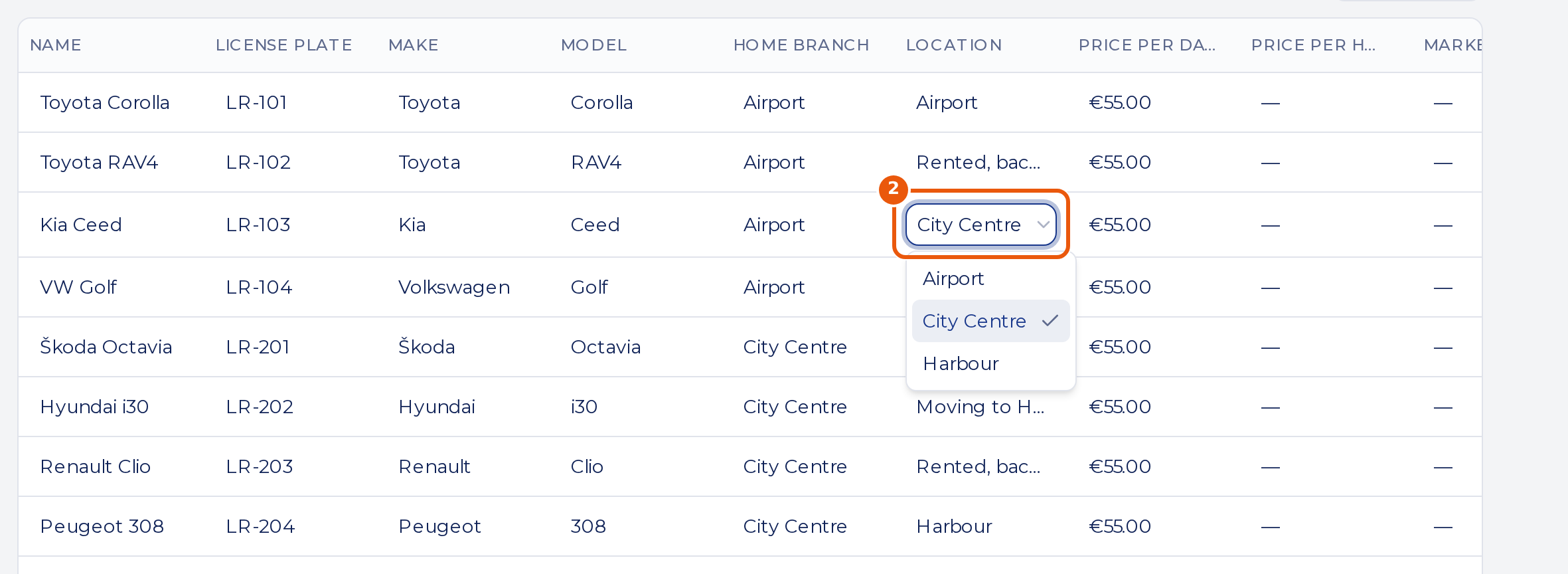
The next return or transfer replaces your correction. You can’t correct the location of a car that is rented or moving, and you can’t clear a known location, only change it.
Changing the home branch doesn’t move a car that has already been returned somewhere. Use the Location column for that.
Find a branch’s cars
On the Fleet page, pick a branch in the Branch filter. The list shows the cars whose home is that branch and the cars standing there now.