Transfers
A transfer is a car being driven from one branch to another. While it drives, the car is off sale, and once the transfer ends the car stands at the new branch.
You need at least two branches and permission to manage blockouts.
Fix a red warning
The quickest transfer starts from a red box on the calendar.
- Click the red box on the car’s row.
- The Transfer Vehicle window opens with the car, both branches and times filled in: a four-hour drive that ends an hour before the pickup, or as much as the gap allows.
- Change the times if you need to and click Create Transfer.
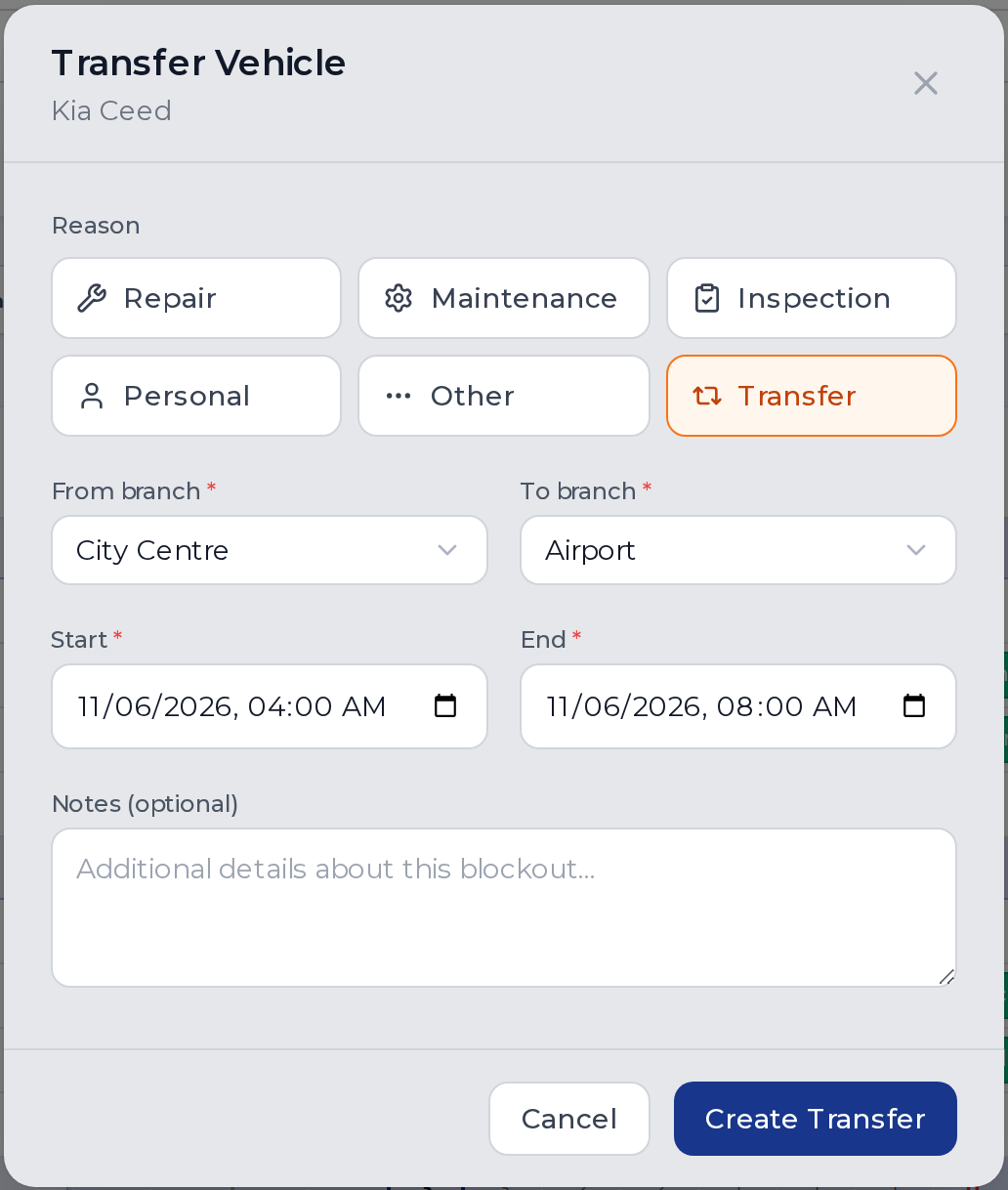
The red box goes away and the transfer shows on the car’s row.
Plan a transfer yourself
- On the vehicle calendar, click Transfer in the toolbar, next to Create Blockout.
- Pick the car and the start and end times. From branch fills in with where the car will stand when the transfer starts.
- Pick To branch and click Create Transfer.
You can also click Create Blockout and choose Transfer as the reason.
What a transfer does
- Between the start and the end, the Guest Book and your booking website don’t offer the car, like with any blockout. A booking you make yourself for those times shows a conflict, which you can override.
- Until the end time the car’s location reads Moving to the branch. After the end time it stands at that branch. There is nothing to mark as arrived.
- To change a transfer, click its bar. Deleting a transfer after it has ended puts the car back at the branch it was at before, so a mistaken transfer needs no correction.
Last updated on