Calendar by branch
The vehicle calendar can put each branch’s cars together and show, day by day, how many cars each branch will have and which cars will be in the wrong place.
Group the calendar by branch
- Open Bookings in the sidebar. The By Vehicle tab opens first.
- Click Order in the toolbar and pick By branch.
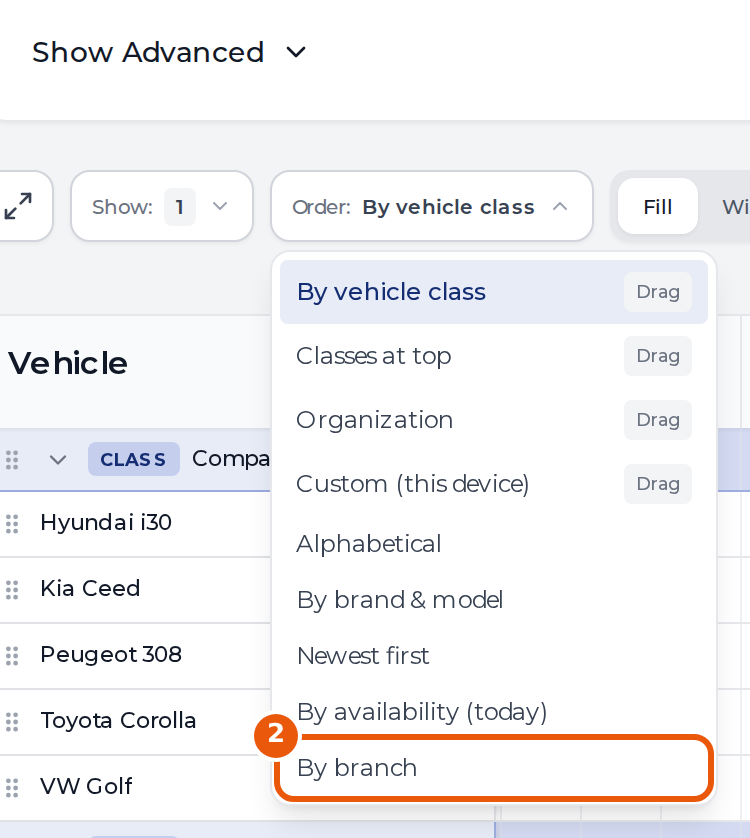
Each branch gets a row with its cars under it. A car sits under its home branch even while it stands somewhere else, and cars with no home branch sit under No branch at the end.
Read the branch rows
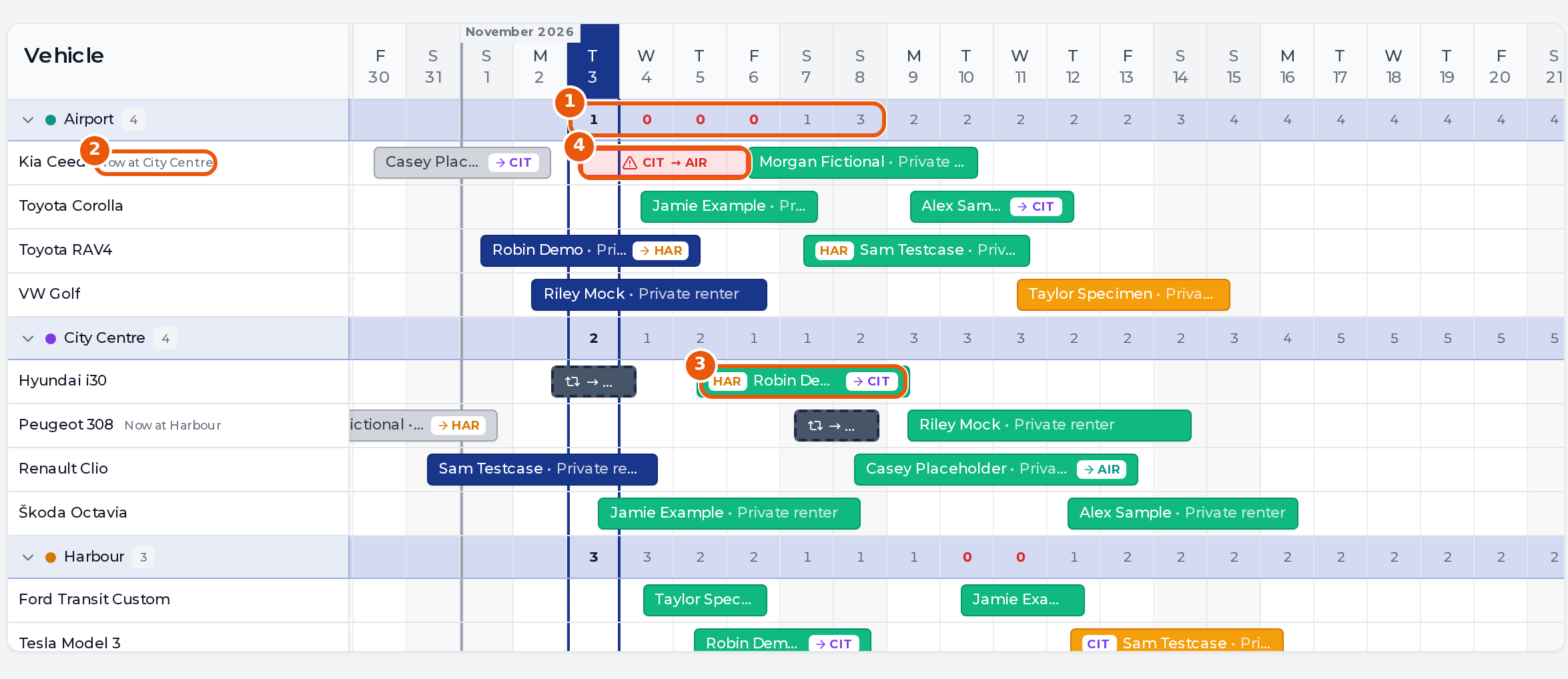
- Cars per day. The branch row shows how many cars will stand at that branch at midday on each day, whichever branch they belong to. It counts only the cars the calendar shows, so a search or a vehicle filter lowers it. A red 0 means none of those cars is there that day. Past days show no number.
- Now at. A car standing away from home shows where it is next to its name.
- Place chips. Three letters at the start of a booking bar name the pickup branch when it isn’t the car’s home branch. An arrow and three letters at the end name the return branch when the car comes back somewhere other than where it left. Each branch has its own colour, and a place that isn’t a branch is grey. Hover over the bar to read the full pickup and return places.
- Wrong place. A red box means the car will stand at one branch while its next rental starts at another, for example CIT → AIR. Hover over it to read both branch names, and click it to plan a transfer.
A transfer is a dark bar with a dashed edge on the car’s row. It shows the branch the car is going to, and the full route when the bar is wide enough. Switch to Wide to read short transfers.
Click the arrow on a branch row to collapse it. The day counts stay on the collapsed row.
What counts
The counts and the red boxes follow every booking the calendar draws, including one marked completed or invoiced whose dates are still ahead, unless it has been checked in. Unticking a status in the calendar’s filter hides those bars, but the counts and warnings still include them.
A red box is a prompt, not a block. You can also fix it by giving the rental a car that is already at the right branch.