Branches
A branch is a place where you keep cars, such as an airport desk or a city office. Mark your branches, give each car a home branch, and Nomora shows where every car is, how many cars each branch has on each day, and which cars need moving before their next rental.
Cars don’t have to go back home. A customer who returns a car at another branch leaves it there, and you can rent it out from there. The home branch only decides where the car’s row sits, so you always find it in the same place.
If you don’t mark any branch, nothing on this page shows up in Nomora.
Mark a location as a branch
Branches are pick-up and return locations with one extra tick.
- Open Settings → Channels → Global and expand Pick-up & return locations.
- Click the pencil on a location, or Add location for a new one.
- Tick This is a branch and save.
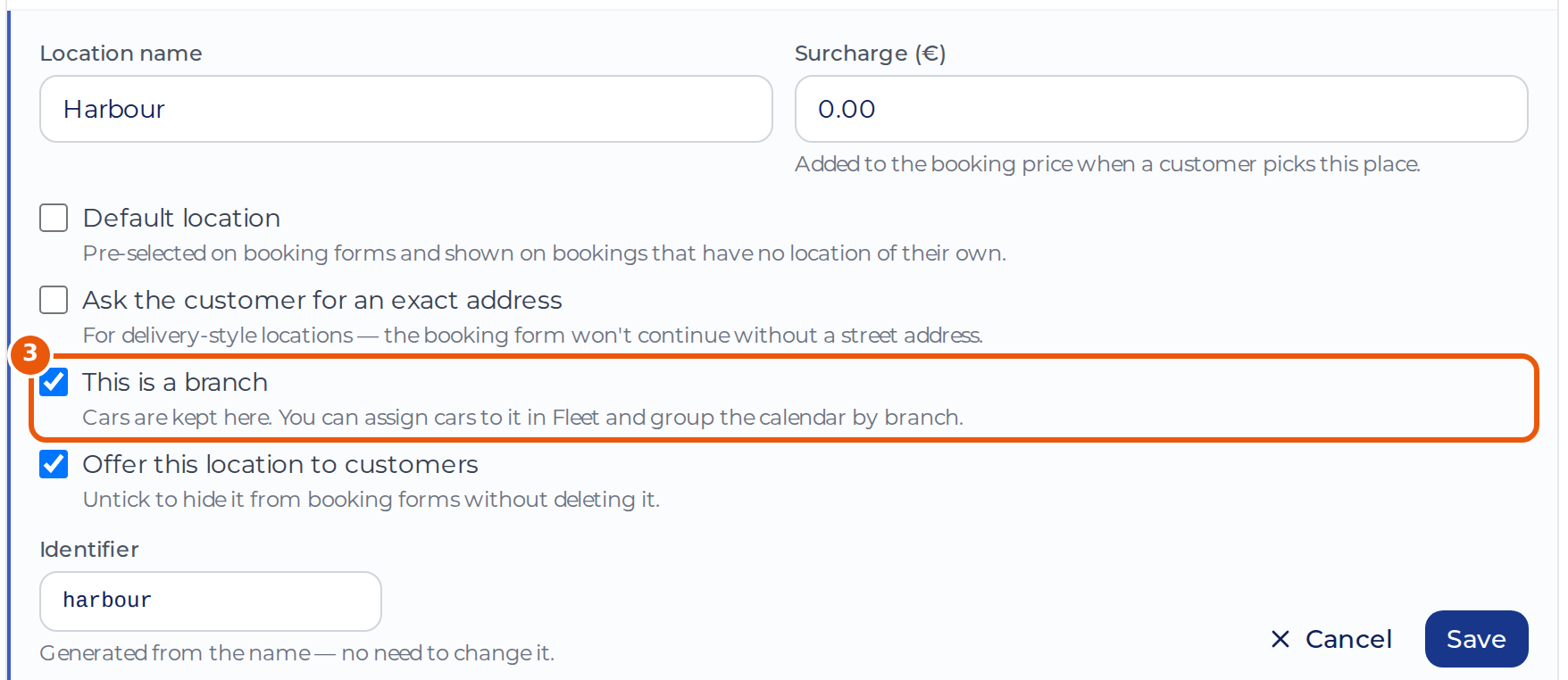
The list then shows Branch next to the location. A location that asks the customer for an address is a delivery zone and can’t be a branch. A location hidden from customers can still be one.
Mark at least two branches to use transfers.
Give each car a home branch
The quickest way is the Fleet table:
- Open Fleet and click Table View, the table icon next to Import.
- Click a cell in the Home branch column and pick the branch.
- Repeat for the other cars, then click Save All Changes under the table.
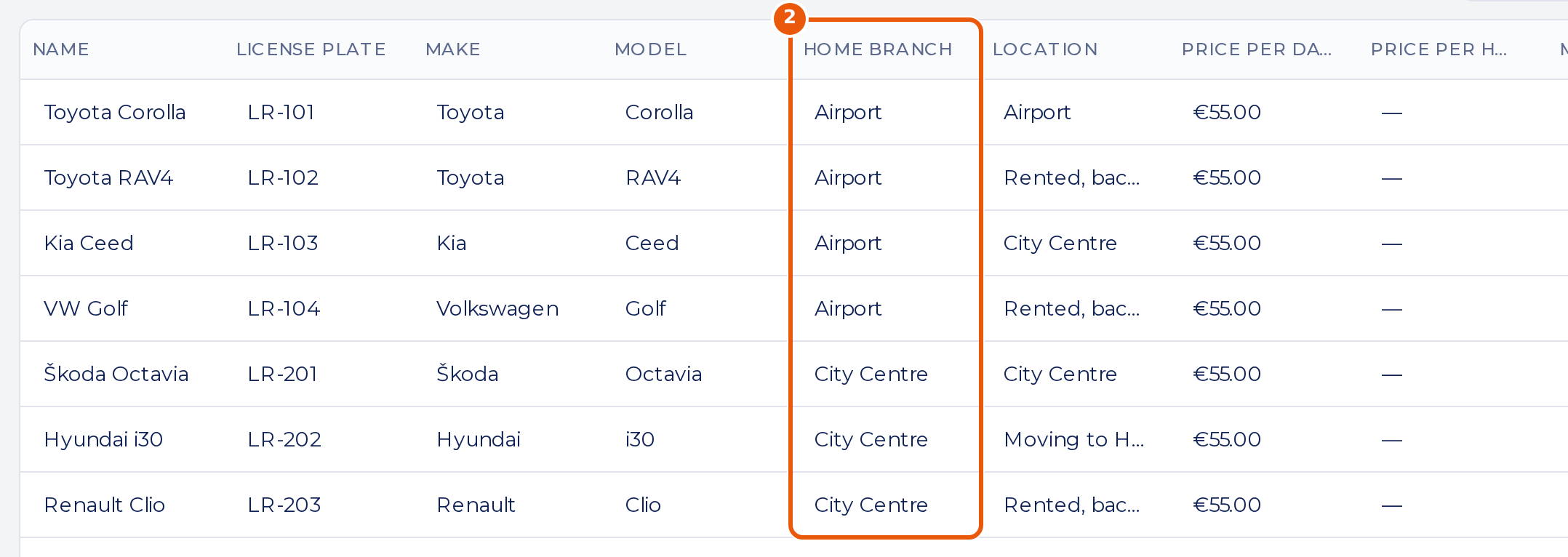
For one car, click Edit on it and pick Home branch on the Basic tab.
A car with no rentals yet stands at its home branch. From then on Nomora follows it, as Where each car is explains.
Who sees what
Everyone on the team sees branches, locations and the branch calendar. Marking a branch needs permission to manage settings. Setting a home branch or correcting a location needs permission to edit vehicles. Creating a transfer needs permission to manage blockouts.
Online bookings
The Guest Book and your booking website still offer every car in the fleet, whichever branch the customer picks. If a customer books a car that stands somewhere else, the calendar warns you and you can plan a transfer.