Class groups
A class group is a named list of vehicle classes, such as Campers or Vans. Use groups to arrange a long class list on the calendar and to set add-ons for many classes at once. Prices, terms and payment rules stay on each class.
Create a group
- Open Settings → Channels → Global and click Class groups.
- Type a name under New group name and click Add group.
- Tick the classes that belong to it and add them.
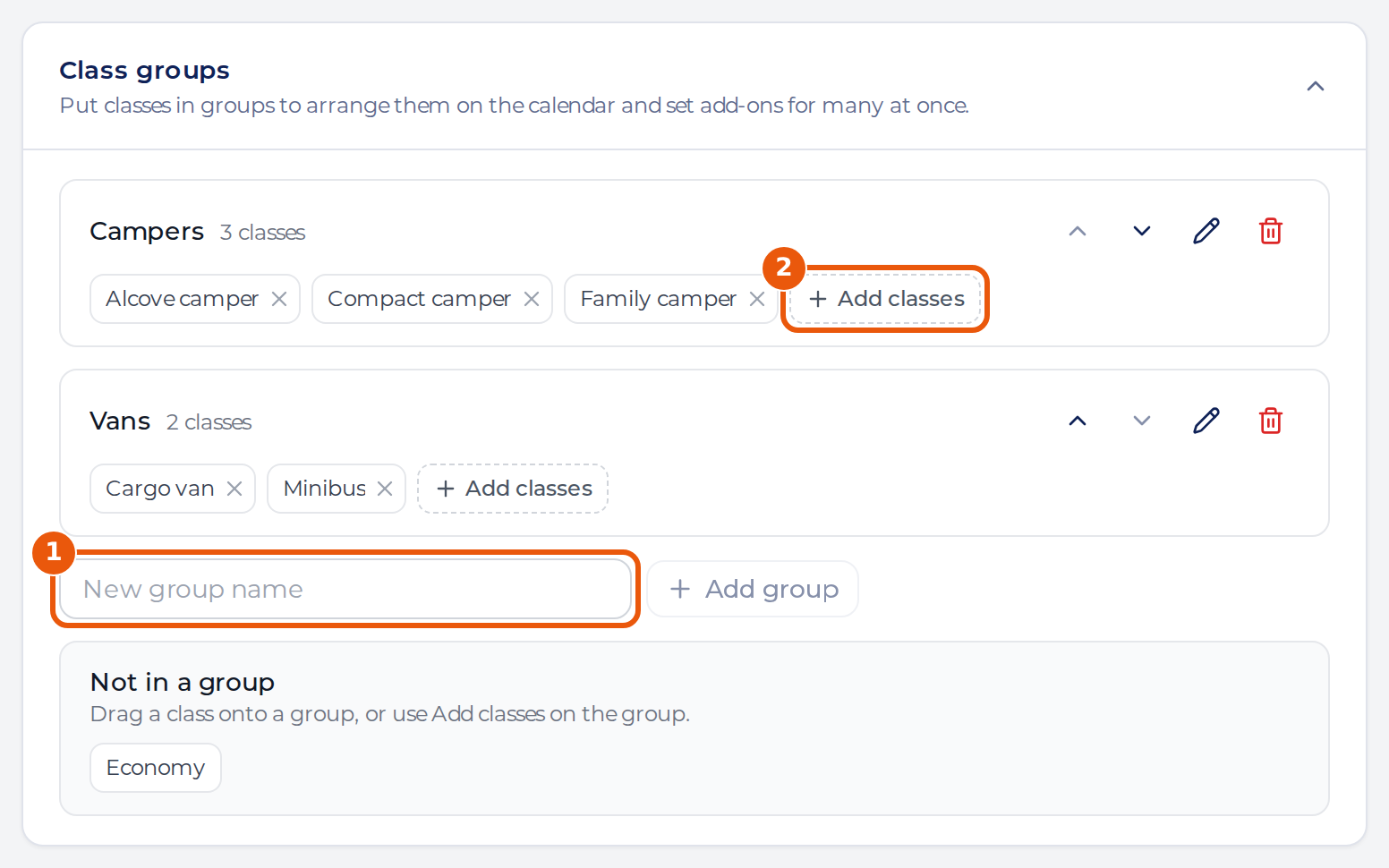
To change a group later, click Add classes, or drag a class from Not in a group onto it. A class can be in one group. The arrows set the order of the groups, the pencil renames one, and the bin deletes the group and keeps its classes.
See groups on the calendar
Groups show on the vehicle calendar when Order is By vehicle class. Each group is a row above its classes, and classes without a group sit under No group.
Click the arrow on a group row to collapse it. A collapsed group shows how many of its vehicles are free each day.
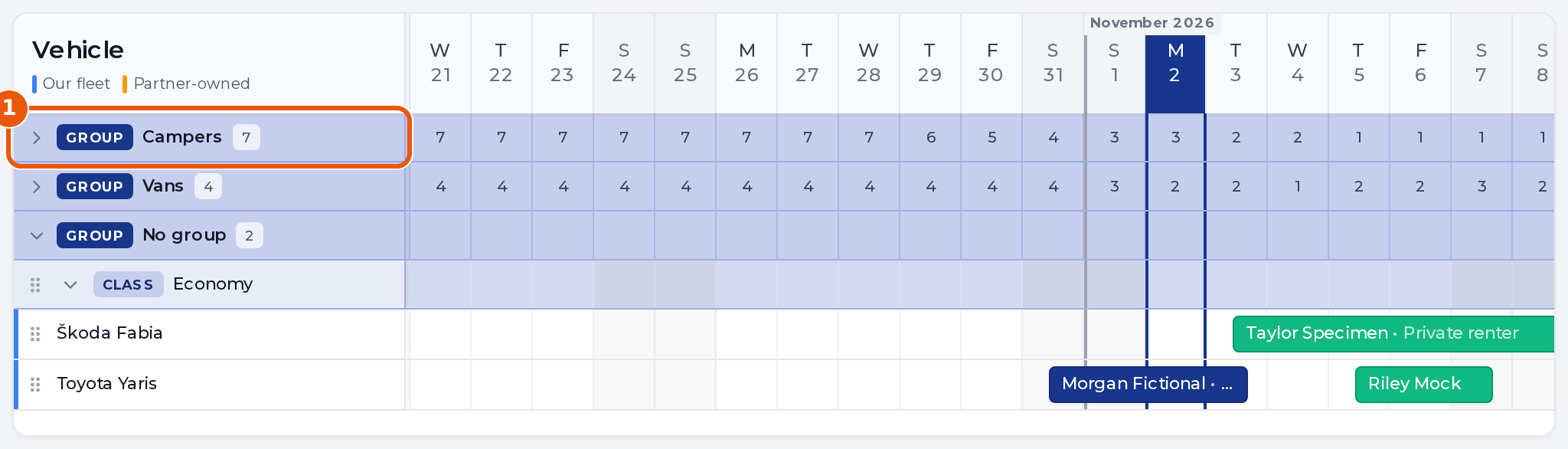
The count treats a vehicle as taken by a live booking or a blockout, and a booking made for a class takes one vehicle. The count hides while a search or a status filter could leave bookings out. Collapsing is saved in your browser, so each person keeps their own view.
Offer an add-on to a whole group
In Settings → Channels → Global → Add-ons & insurance, each group has its own column. Click the cell where the item meets the group, then Save changes. Click the arrow next to a group’s name to see its classes.
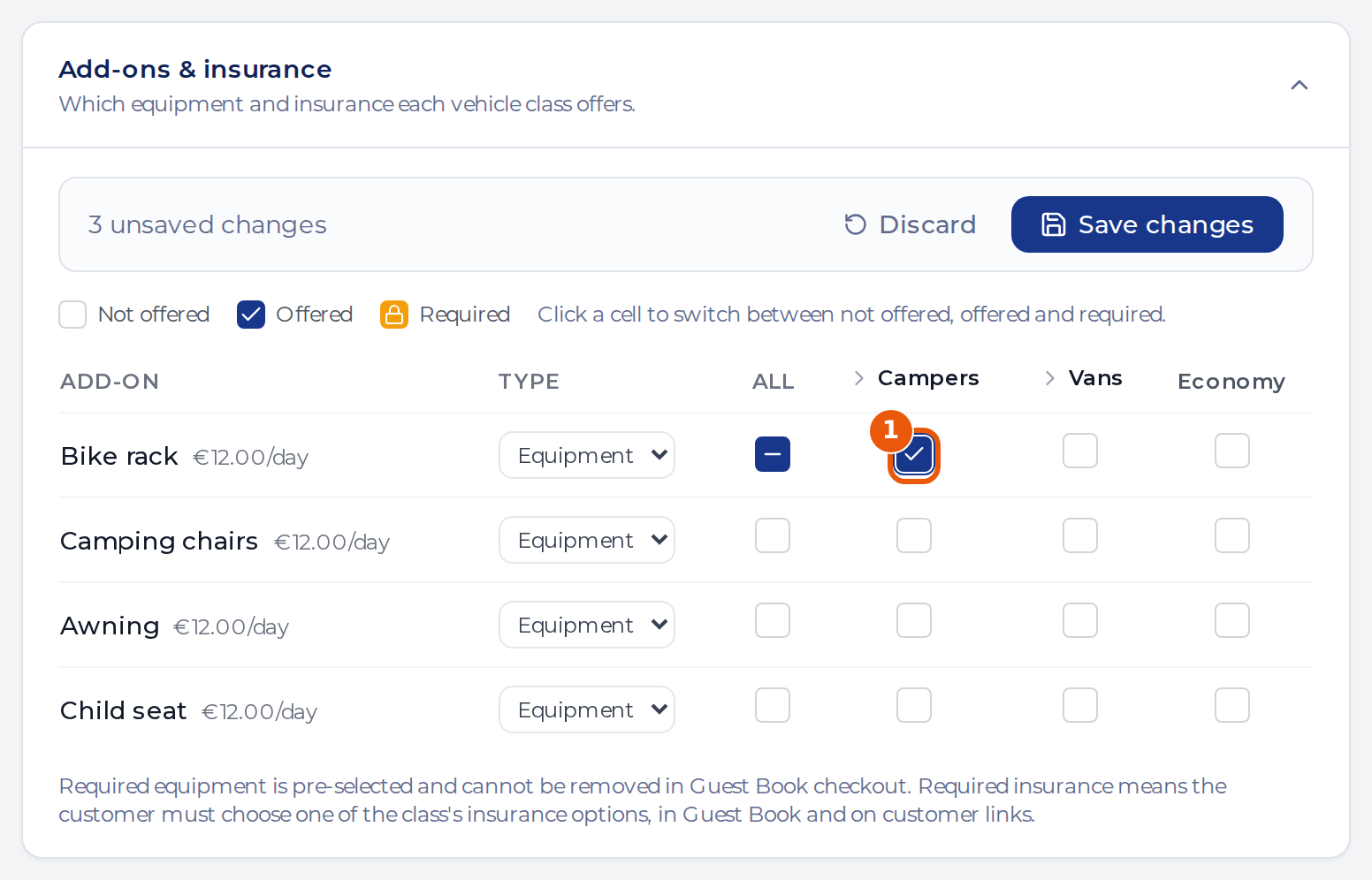
The cell changes every class in the group at that moment. A class you add to the group later keeps the add-ons it already has and doesn’t pick up the group’s, so check it yourself.