Vehicle marks
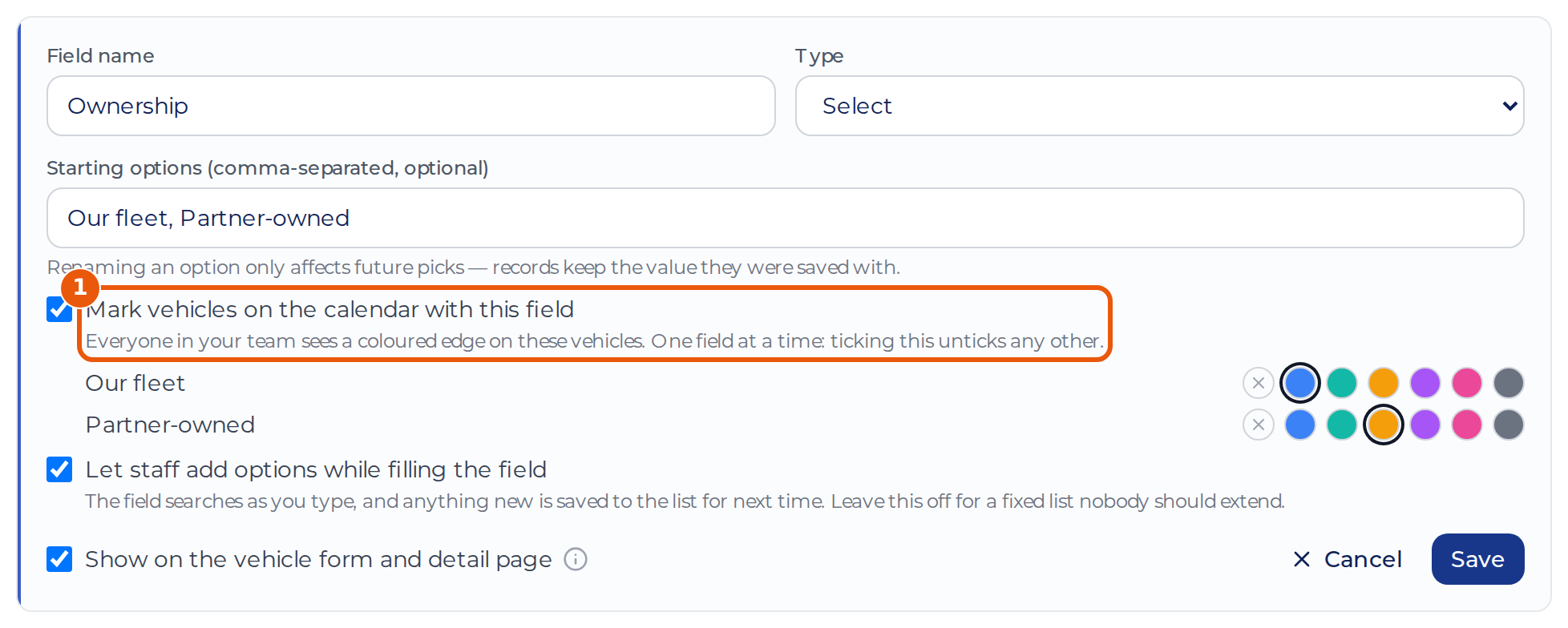
Mark vehicles on the calendar with a coloured edge, for example to tell your own vehicles from partner-owned ones.
Create the field
- Open Settings → Custom fields and click Add custom field under Vehicle custom fields.
- Name the field and choose the Select type, then enter the options.
- Tick Mark vehicles on the calendar with this field and pick a colour for each option.
- Click Save.
Fill it in
Open Fleet, click Edit on a vehicle and go to the Equipment tab. Pick the value under Custom fields and click Save. You can also fill it in as a cell in Fleet Tracker.
See the marks
Open Bookings → By Vehicle. Everyone in your team sees the coloured edge on the vehicle’s row, and the header shows what each colour means. A vehicle with no value, or with an option that has no colour, has no edge.
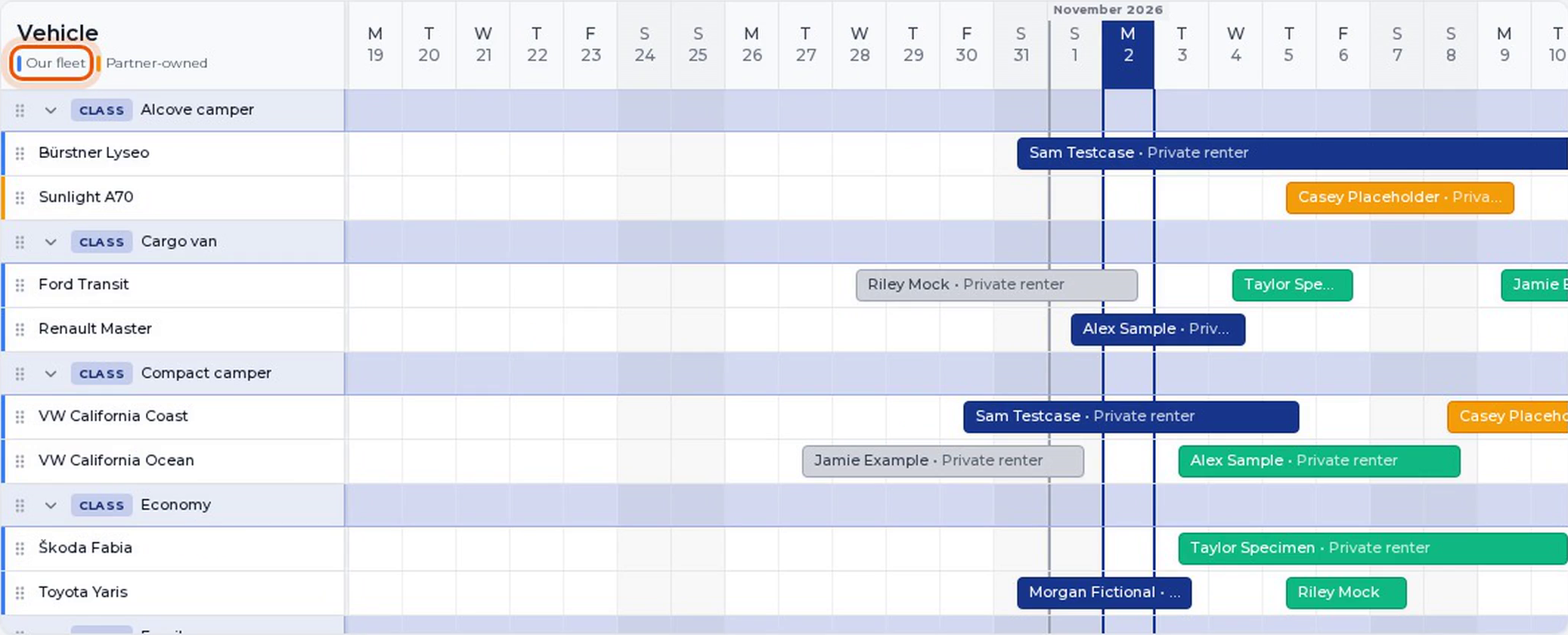
One field can mark vehicles at a time: ticking this on another field unticks it here.
Last updated on